
Set Up Service Plans and Maintenance Agreements
Record what you've promised a customer, see which visits are still owed, and book and bill each one.
For business owners, office staff, and dispatchers who manage maintenance agreements
On this page
A plan tracks every visit you owe. You still book each appointment, create each invoice, and collect payment yourself.
What a service plan does
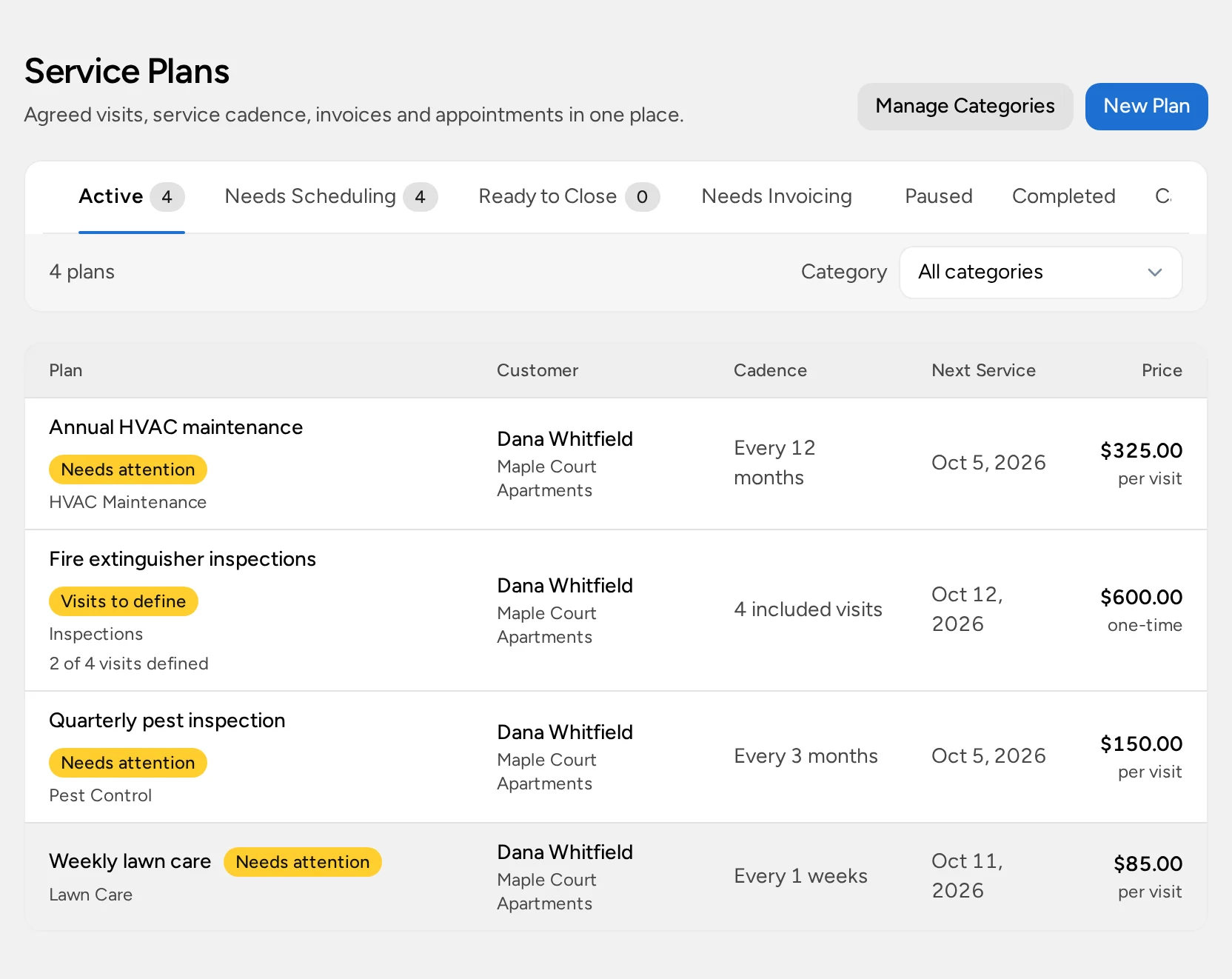
A service plan records an agreement with one customer at one service location: the work covered, how often you visit, and the price. Opsentric turns that agreement into a list of service visits, one for each visit you owe, and flags the ones that need booking.
A plan never books appointments, creates invoices, sends email, or collects payment by itself.
Check your access
Service plans need Field Service on your organization’s plan.
| To do this | You need |
|---|---|
| Create and edit plans, define and skip visits, manage categories, pause, complete, cancel, or reopen | Manage invoices |
| View plans and book their visits | Manage schedule, with the Field Service experience active |
| See a plan’s Invoices tab | Manage invoices or View finance |
| Use Needs Invoicing | Manage invoices plus schedule access. Staff who see only their own schedule see only their own visits. |
Choose a plan type
| Type | Use it for | How visits are created |
|---|---|---|
| Recurring service, based on Last service date | Ongoing maintenance, like quarterly HVAC or monthly pest control | One visit at a time. The next is due one interval after the date the last visit was actually done, so a late visit pushes the next one back. |
| Recurring service, based on Fixed schedule | A season with set windows, like weekly mowing from September to November | All visit windows are created when you save. Windows don’t move when an appointment does. Needs an end date. |
| Fixed number of visits | A package, like four inspections a year | You set how many visits are included (up to 1,000), then define each one’s label and deadline later. |
Billing is separate from the type. Per visit bills each completed visit at the plan price. One-time price covers the whole plan.
Create a plan
The customer needs a service location first. If they don’t have one, choose Add Service Location… from the location list in the plan form (needs Manage schedule), or see add a service location.
- Open Service Plans and select New Plan, or open the customer and choose Create → Service Plan.
- Choose the Customer and Service location.
- Enter a Plan name and, optionally, a Category.
- In Covered work and notes, describe what each visit includes. This text is suggested as the visit notes when you book.
- Choose the Service type. For recurring service, choose Next service based on, then set Visit every and Frequency unit. For a fixed number of visits, enter Number of included visits.
- Set the Start date and, if needed, the End date.
- Choose Billing, enter Price before tax, and select Save Plan.
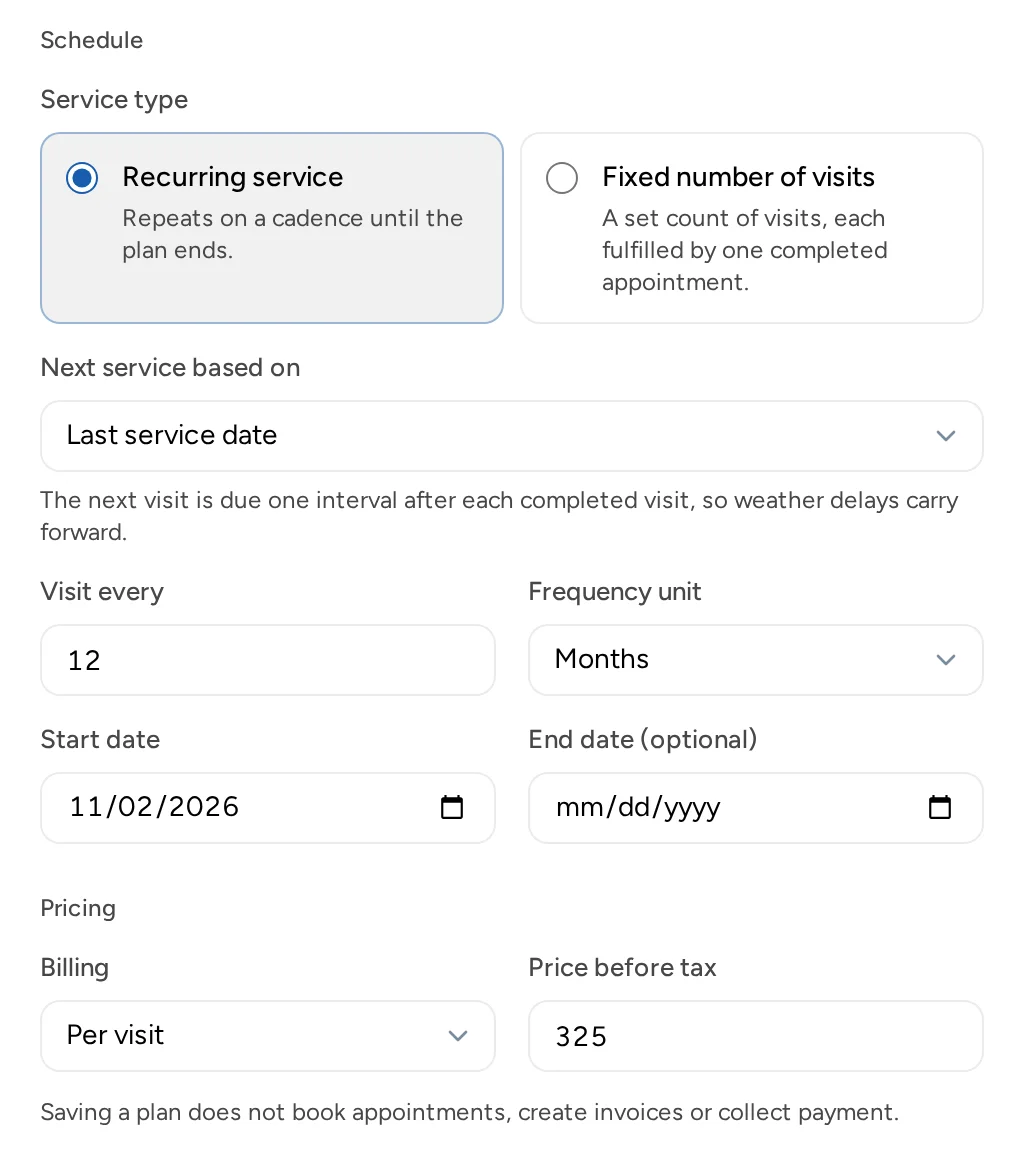
After saving, the plan’s customer, location, type, cadence, dates, and number of included visits are locked, so the visits you’ve promised can’t change underneath you. You can still edit the name, category, notes, billing, and price. Price changes apply to new invoices only. If the terms of the agreement change, create a new plan.
Track visits on the Service Visits tab
Open a plan to see each visit owed, its due date or window, and its status.
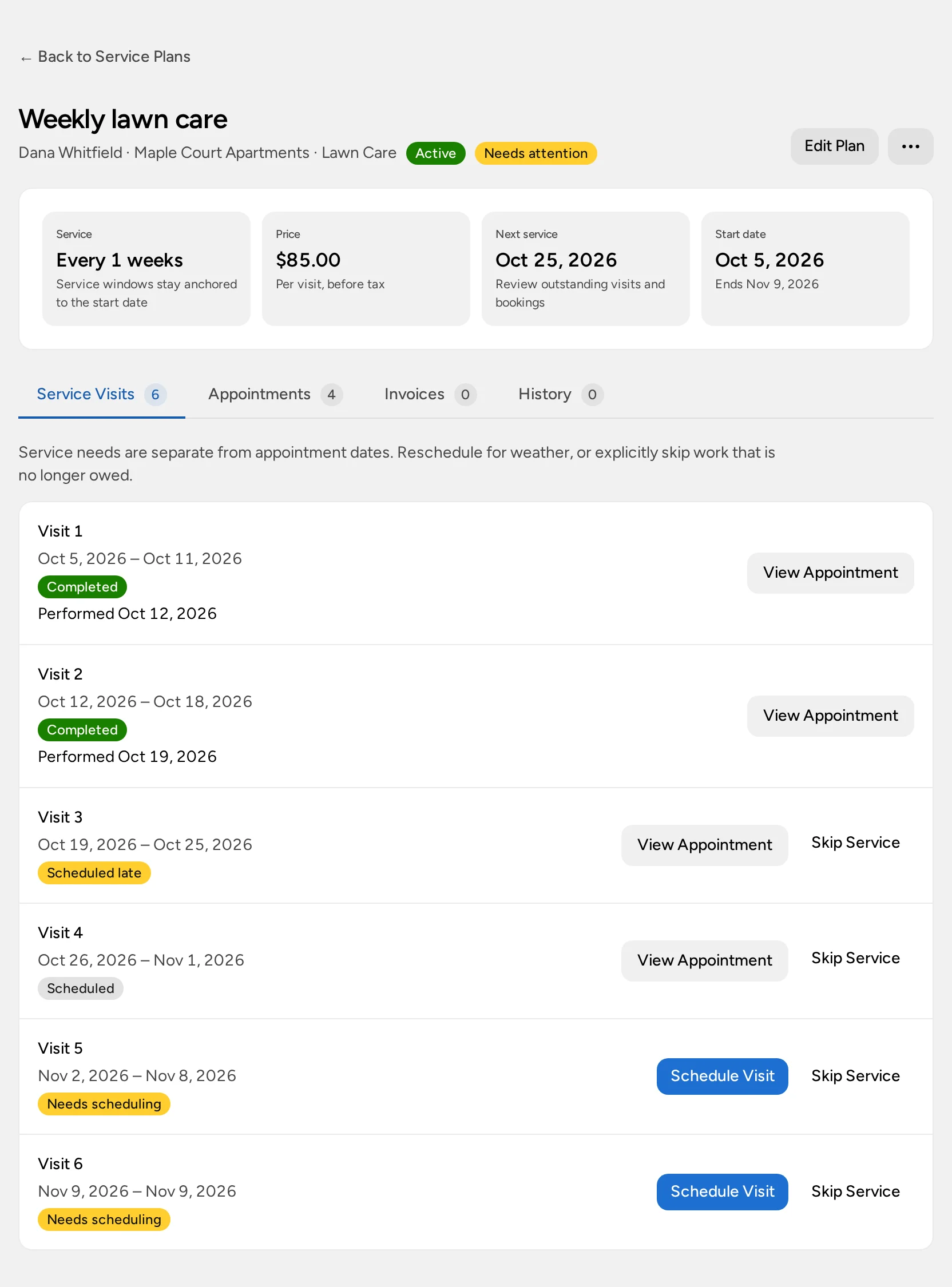
A visit shows one of these statuses:
- Upcoming: not due for booking yet.
- Needs scheduling: due within 30 days with no appointment.
- Overdue: past its deadline with no appointment.
- Scheduled: booked on time.
- Scheduled late: booked after its deadline or window.
- Unfinished appointment: the appointment date has passed but the visit wasn’t completed or canceled.
- Completed: shows the date the work was performed.
- Skipped: shows the reason.
Service Plans → Needs Scheduling lists every active plan with at least one of these problems, plus fixed-visit plans with visits still to define. Check it weekly.
Define visits on a fixed-visit plan
A fixed-visit plan starts with no dates. Those visits are still owed, and the plan shows Visits to define until each one has a deadline.
- On Service Visits, select Define Visit.
- Enter an optional Visit label, such as “Fall inspection”, and a Service deadline within the plan term.
- Select Save Visit.
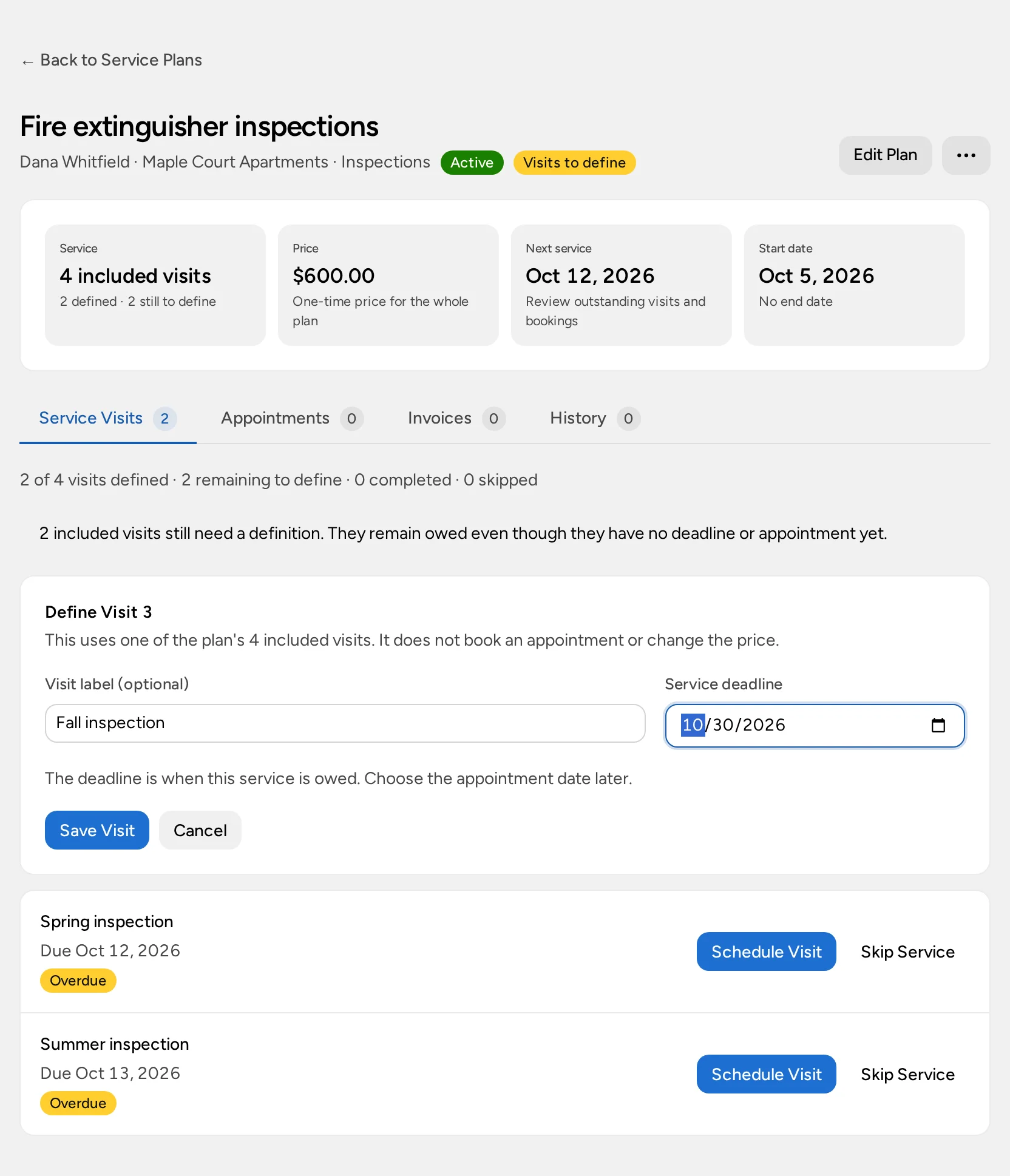
You can’t edit or remove a visit once it’s defined.
Book a visit
- On Service Visits, select Schedule Visit on the visit’s row. From the Appointments tab, select Schedule Visit and choose the Service obligation.
- The appointment form fills in the customer, location, and covered work. Choose the date, time, and assignees.
- Save the appointment.
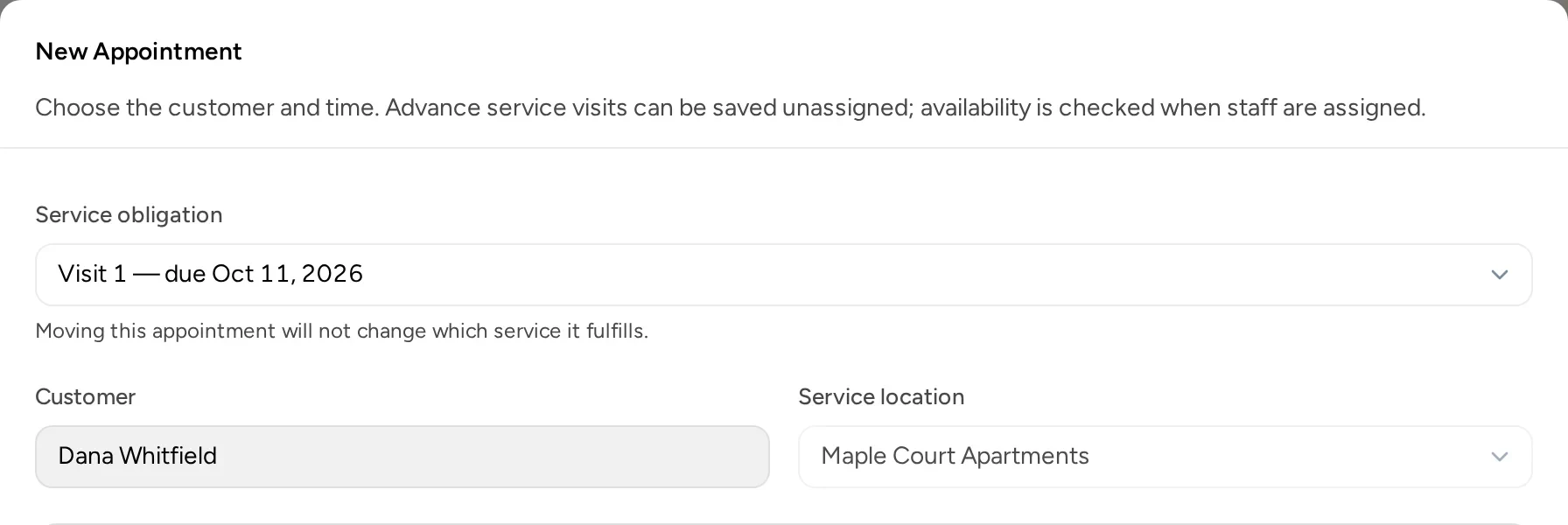
Each visit can have one active appointment. Rescheduling keeps the link. Canceling the appointment leaves the visit owed, so it comes back as needing scheduling. Only active plans take new bookings.
Complete a visit
When a technician completes a plan visit in My Day, Opsentric asks for the Actual service date. Enter the day the work was done, not the day you’re recording it. For plans based on the last service date, this date sets when the next visit is due.
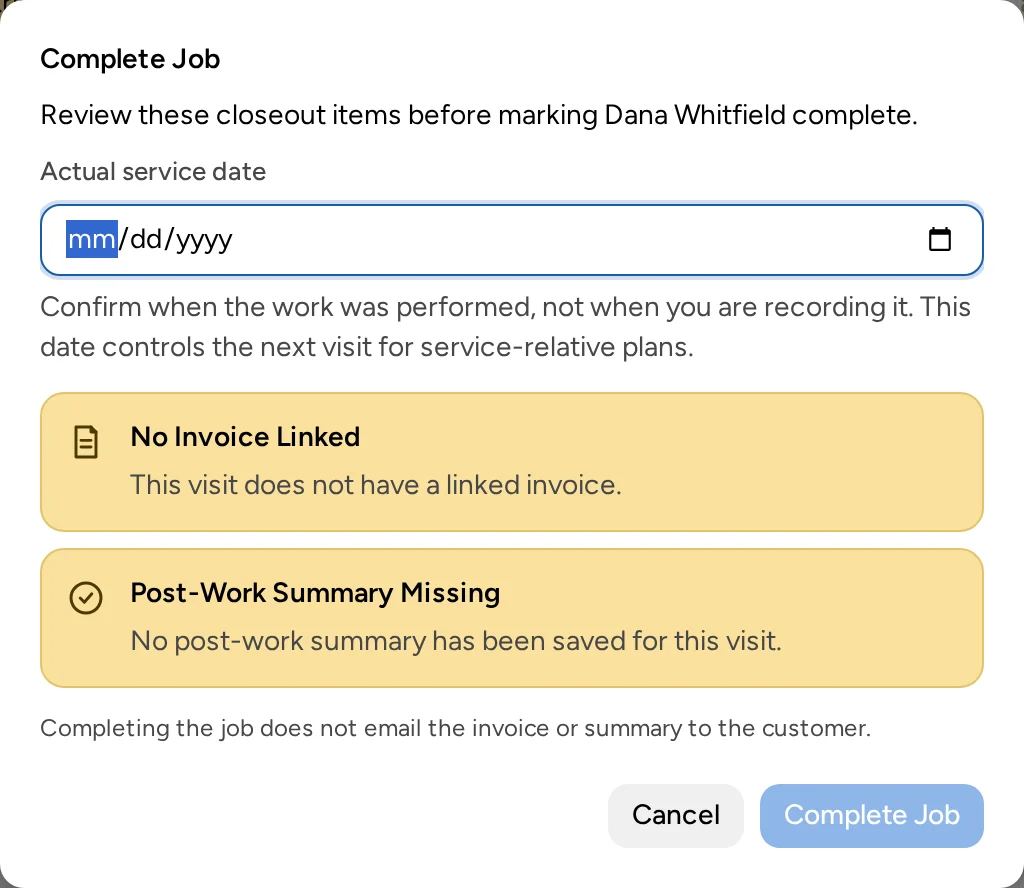
A visit done early still counts. Completing an appointment only fulfills the visit it was booked for.
Skip a visit
Use Skip Service when a visit is no longer owed, for example when the customer cancels a week or weather rules it out. If you only need to move the visit, reschedule the appointment instead.
- On the visit’s row, select Skip Service.
- Enter a Reason.
- For plans based on the last service date, choose what happens next: Choose the next due date, or No further service under this plan.
- Tick I confirm this service is no longer owed. and select Skip Service.
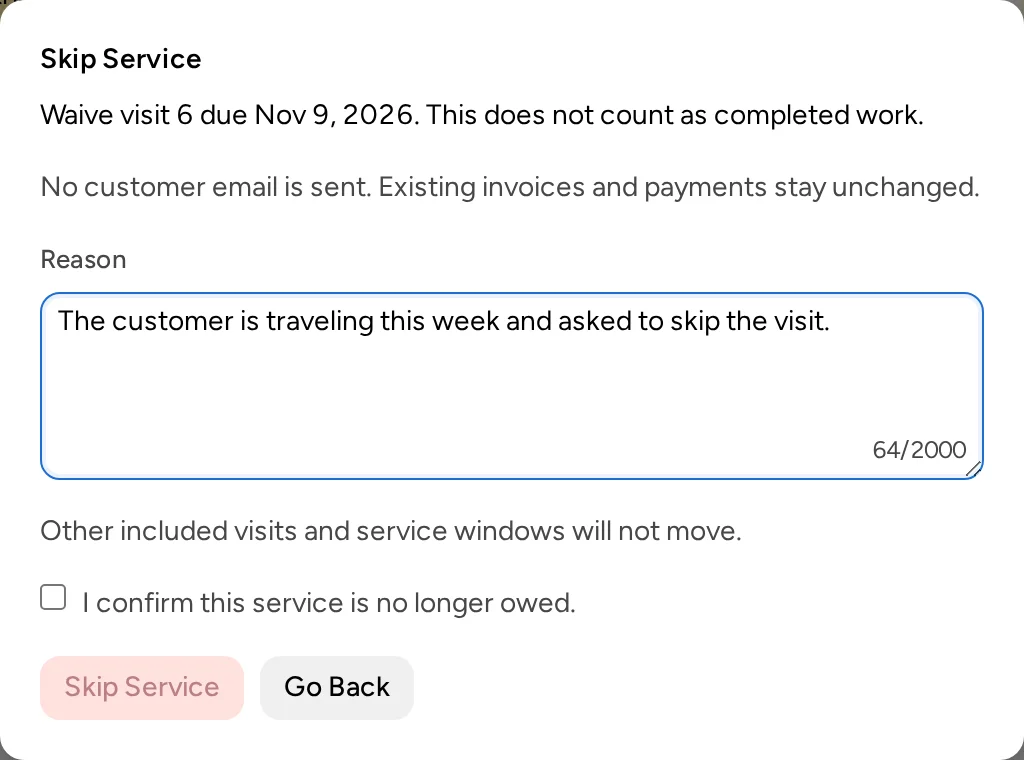
A skipped visit never counts as completed. If it had a scheduled appointment, that appointment is canceled without emailing the customer; doing this also needs Manage schedule. You can’t skip a visit that has started or been completed.
Bill the plan
Per visit. Bill each visit after it’s completed. Select Create Invoice on the completed appointment, or open Service Plans → Needs Invoicing, which lists completed per-visit work with no invoice, including work on paused or closed plans.
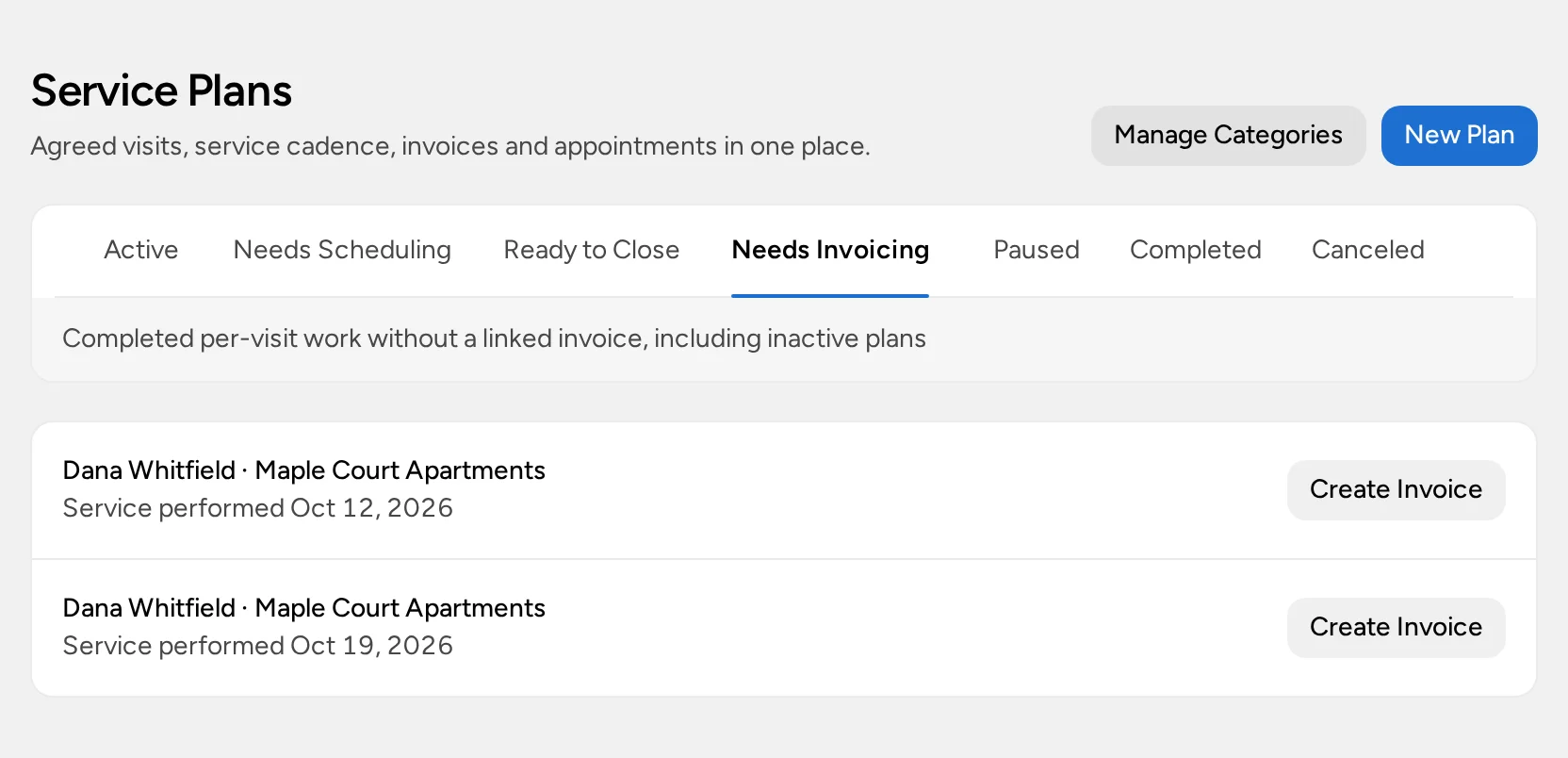
The draft starts with the plan name, the date the work was done, a quantity of 1, and the plan’s current price. Review it and select Save Quote. The visit then leaves the list. Saving doesn’t send anything; follow Create and Send a Customer Invoice to issue it.
One-time price. Open the plan’s Invoices tab and select New Invoice. Individual visits on a one-time plan can’t be invoiced, so the same work isn’t billed twice. Check what’s already on the Invoices tab before creating another.
Unpaid invoices never block booking, completing visits, or closing the plan.
Group plans into categories
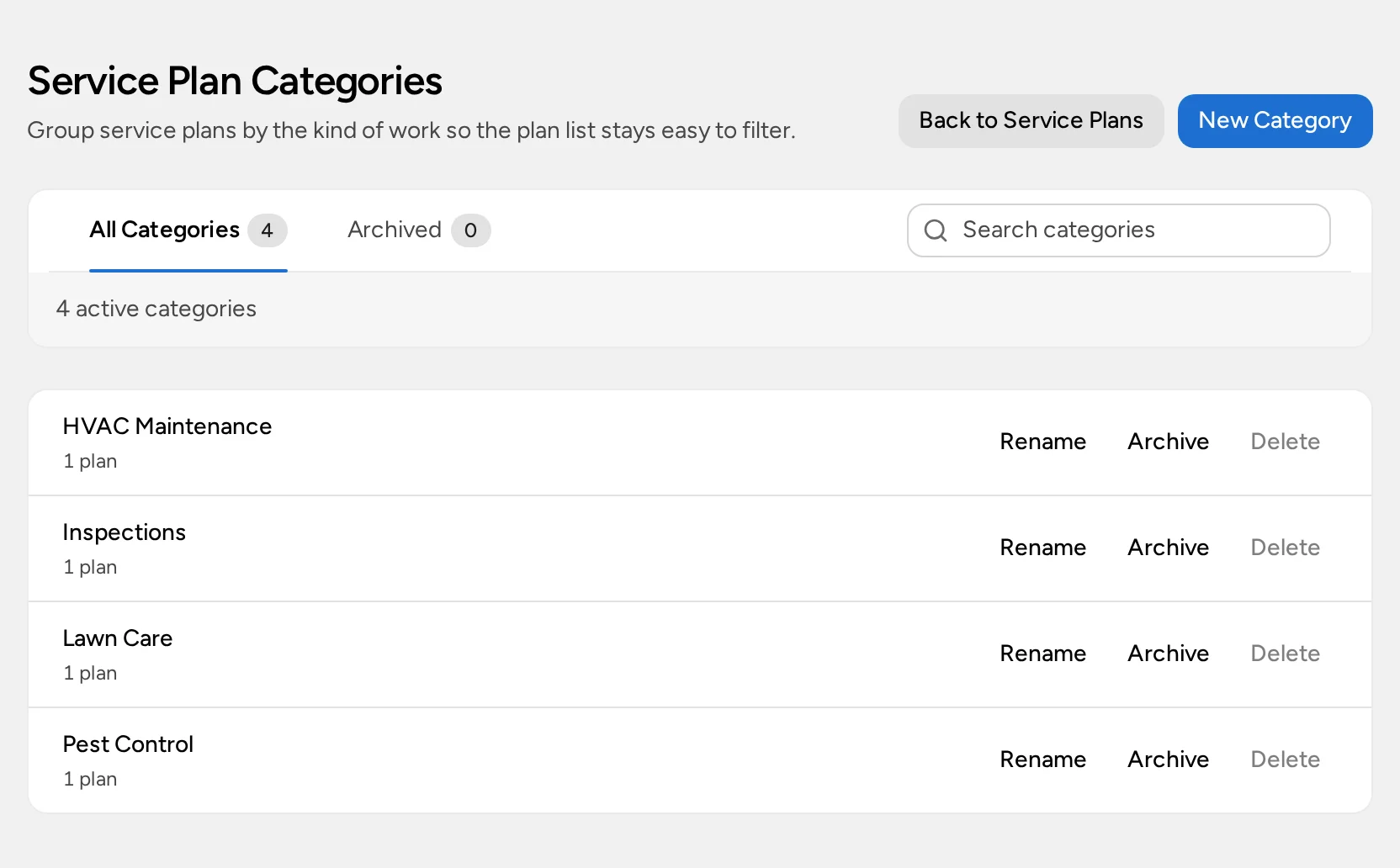
Categories, such as “Lawn Care” or “HVAC Maintenance”, let you filter the plan list with the Category menu. They’re optional.
To manage them, select Manage Categories on the Service Plans page. Add one with New Category, or Rename, Archive, and Restore existing ones. You can only delete a category no plans use. An archived category stays on plans that already use it, but can’t be chosen again.
Pause, complete, cancel, or reopen
Use the actions menu on the plan. Every change is recorded on the History tab.
- Pause Plan stops reminders and new bookings. Resume Plan starts them again.
- Cancel Plan needs a reason. Booked appointments stay on the calendar; cancel them separately.
- Review & Complete closes the plan. Every included visit must be defined and either completed or skipped, and no appointments can be unfinished. Tick I confirm that the agreed work is finished. and select Complete Plan.
- Reopen Plan brings back a completed or canceled plan. It needs a reason.
When all the work is done, the plan shows Ready to close and appears under Ready to Close. Recurring plans also need their end date to have passed. The plan stays active until someone completes it.
Plans created before visit tracking
Older plans show a note that they use the original cadence rules. If the plan has no appointments or invoices yet, select Define Service Type to convert it. If it already has history, create a new plan for the remaining work so past visits aren’t guessed at.
If your screen looks different
Service Plans is missing from the sidebar
Your organization’s plan may not include Field Service, or your role doesn’t have Manage invoices or Manage schedule.
New Plan, Define Visit, or Skip Service is missing
These need Manage invoices. Skip Service also only appears while the plan is active.
Schedule Visit is missing
Check that you have Manage schedule, that your organization uses Field Service rather than Self Scheduling, and that the plan is active. On a fixed-visit plan, the visit must be defined first.
You can’t change the plan’s dates or frequency
Those terms are locked once the plan is saved. Create a new plan for the new terms, then complete or cancel the old one.