
Opsentric for Plumbing
Manage plumbing calls and return visits.
The tenant reports the leak, the property manager pays, and the plumber needs the right address. Keep those details straight from the initial call through the return visit and invoice.
14-day Pro trial with optional Field Service. No credit card required.
- Leak assessments
- Water heater work
- Fixture replacements
Handle the request
and plan the work.
A practical workflow for plumbing work.
Separate the payer from the property
Keep the billing contact on the customer record and the work address on its service location. Confirm which unit needs attention and how the plumber can get access before booking.
Organize customers and sitesBook the return once parts are ready
An assessment may finish while a replacement part is still on order. Once you have the parts and agreed scope, book a separate return visit and assign the plumber who will do the work.
See the dispatch workflowQuote the repair and record the parts cost
Prepare a quote for the agreed repair or replacement. Supplier receipts are separate from the customer invoice. After you upload a parts receipt, finance still needs to review it and record the expense.
Handle parts receipts
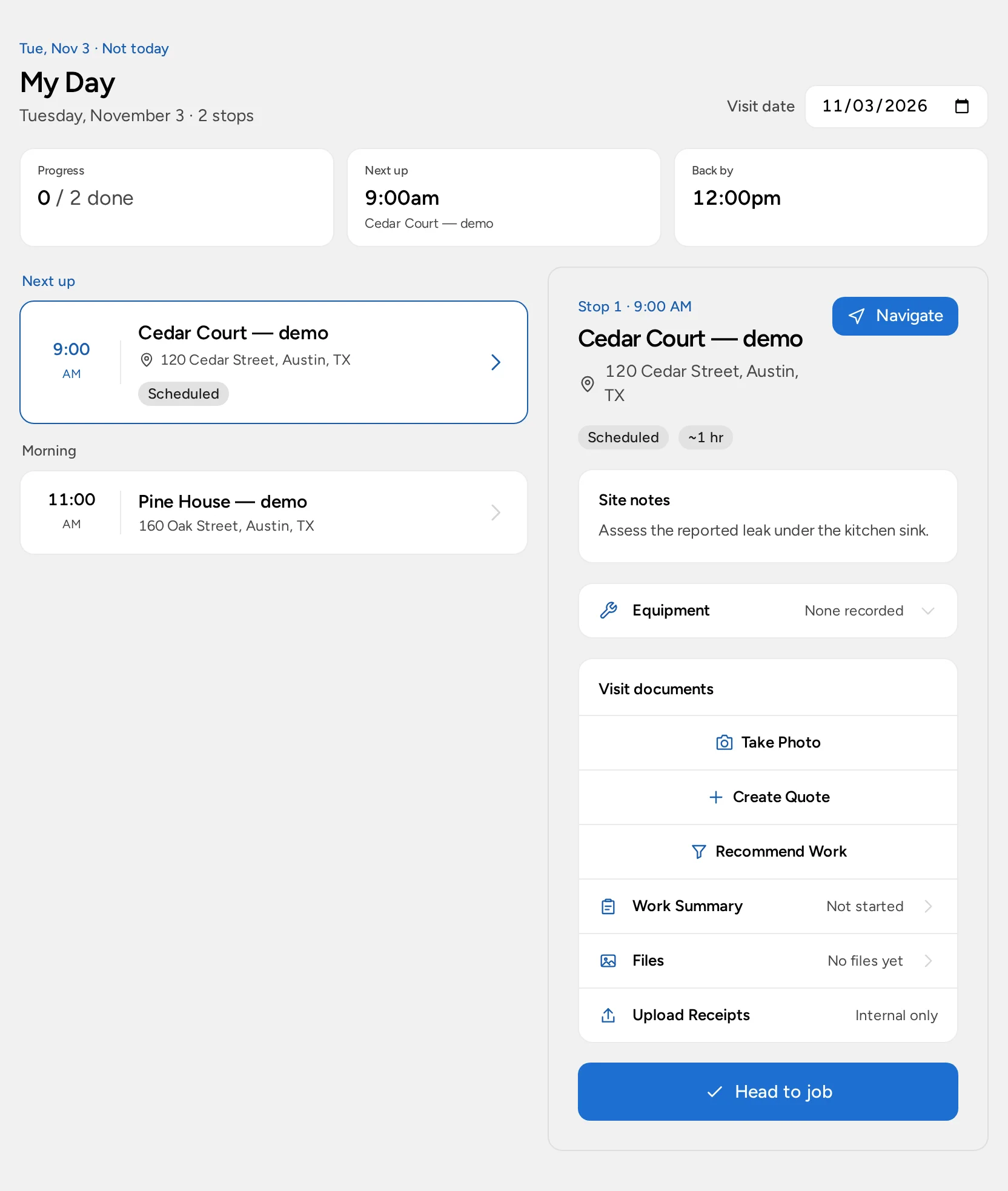
Check the address and site notes in My Day.
The assigned plumber can record the work in My Day and save a water heater's equipment identifiers at its service location. The office can use those details when following up with the customer.
Explore My DayReview the invoice and payment separately
Check the quote before issuing and sending the invoice. Customer credit card payments require your own connected, approved Stripe account. Saving a visit or sending an invoice does not collect money; check the payment status separately.
See the billing stepsWhat you can do with Field Service
Tools for the office and the people working at customer sites.
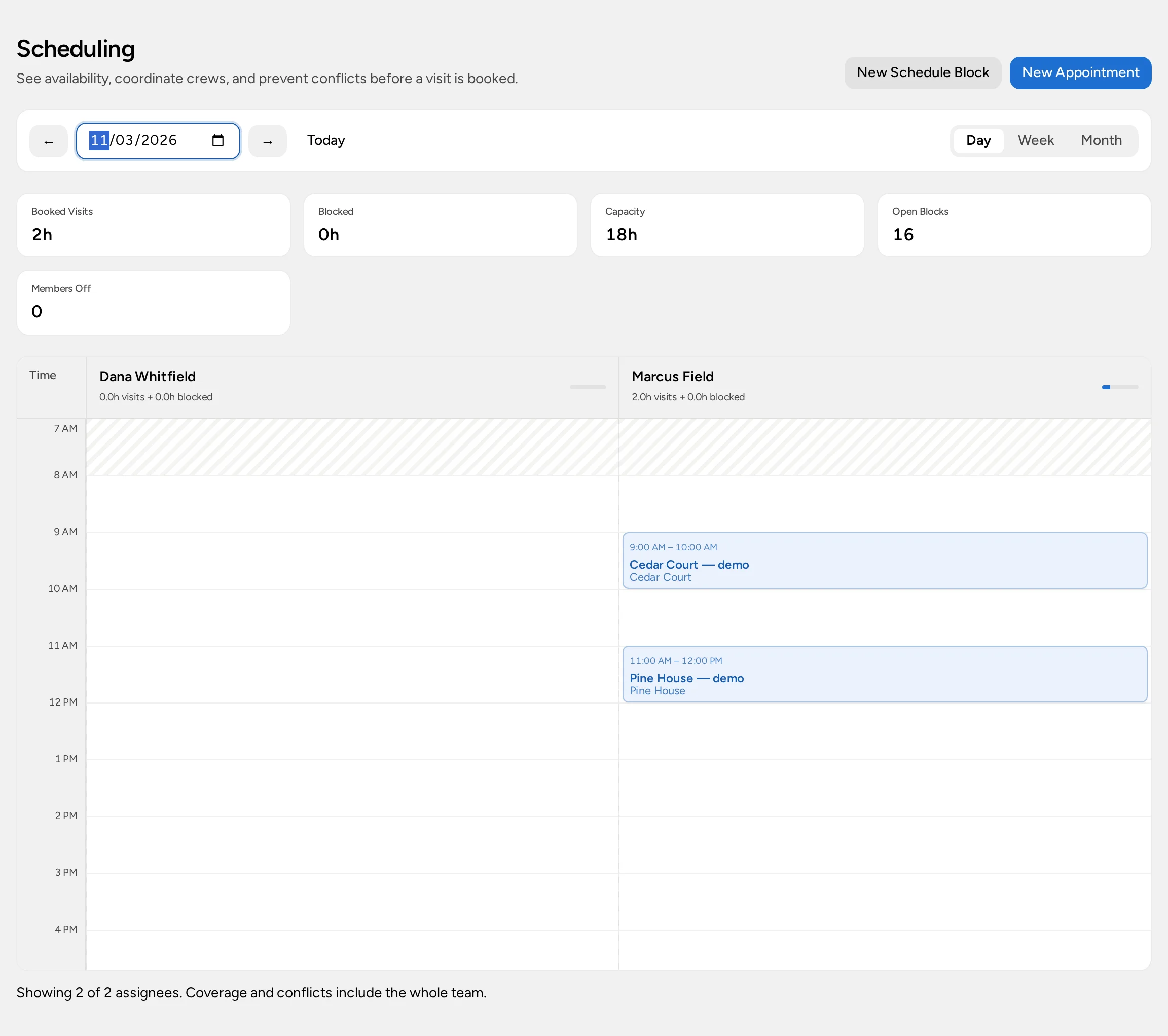
Crew scheduling and availability
Check booked visits alongside working hours and approved time off. You can assign a technician or a saved crew and review suggested times before booking. Use schedule blocks for supplier runs and other work.
Explore crew schedulingMy Day on a phone or tablet
Workers can open their assigned stops in a browser to check addresses and site notes, navigate to the job, and update visit progress. The office uses the same visit details.
See the technician's dayEquipment records at each site
Each service location holds its equipment's make, model, serial number, label date, notes, and photos. Assigned technicians can check or update those details from the visit. Archive replaced units to retain their records.
See equipment recordsWork photos and visit documents
Attach PDFs and take photos before, during, or after the work. The files stay with the visit for your team to use. To share photos with a customer, choose which ones to include in their work summary; the other files stay internal.
Explore visit documentationQuotes prepared on site
Start a quote from an eligible visit using the customer details already saved. Add catalog items or describe the work yourself, then check the price before issuing or sending it. Customer approval workflows require Pro.
See on-site quotingCustomer work summaries
Write up the completed work, findings, and recommendations, and choose photos for the customer. Someone with invoice-management access reviews and sends the summary, either separately or with the first invoice email. Completing the visit does not send it.
See customer work summariesService Plans for repeat work
Track a recurring service agreement or a fixed number of included visits. Check Needs Scheduling for work to book and Needs Invoicing for completed per-visit plan work to bill. A plan does not automatically book appointments, issue invoices, or collect payment.
Explore Service PlansRecommended work and follow-ups
When you spot more work on an eligible service visit, use Recommend Work to create a separate lead with the customer and site details. Assign someone to follow up on it. The recommendation leaves the current invoice unchanged.
See work recommendations
These tools require the optional Field Service add-on on Basic or Pro. Each person's permissions control what they can do. Customer approval workflows require Pro.
Plans, setup, and product limits
Keep permits, inspection results, code requirements, and specialist diagnostic records in your trade processes. Scheduling a visit does not certify the work or reserve inventory.
Choose a plan and add Field Service
Basic and Pro include CRM, proposals, invoices, and personal scheduling. Customer-site dispatch, My Day, equipment, and Service Plans require the optional Field Service add-on: $20/month per organization. That price is in addition to the subscription and any extra seats. You can include Field Service in the Pro trial without a credit card. For Enterprise, confirm what's included in your agreement.
Before the first real job
Check your business contact details and time zone. Choose your organization currency and invoice numbering before creating the workspace; you cannot change those choices later. Decide who will handle leads, dispatch, invoices, and receipt review, and check that each person has the permissions they need.
After creating the workspace, connect Stripe for customer credit card payments. Check both payment acceptance and bank-payout readiness, then save an active online payment income category. Your Opsentric subscription payment does not connect this account.
Try it with a sample job
Add a sample customer and book a visit. Check what the office and assigned worker can see before using it for real work.