
Bulk Import Customers and Items from CSV
Load customer records and your item catalog from a spreadsheet, then check what was created before importing the next batch.
For business owners, office staff, and teams moving existing records
On this page
Use a separate CSV template for customers and items. Valid rows are saved even when others fail, so retry only the rows that were skipped.
What you can import
Administration → Bulk Imports creates customers or catalog items from CSV files. It doesn’t import invoices, service locations, appointments, leads, receipts, or users, and it doesn’t sync with another system.
You need Bulk import, plus Manage catalog for items or Manage customers for customers.
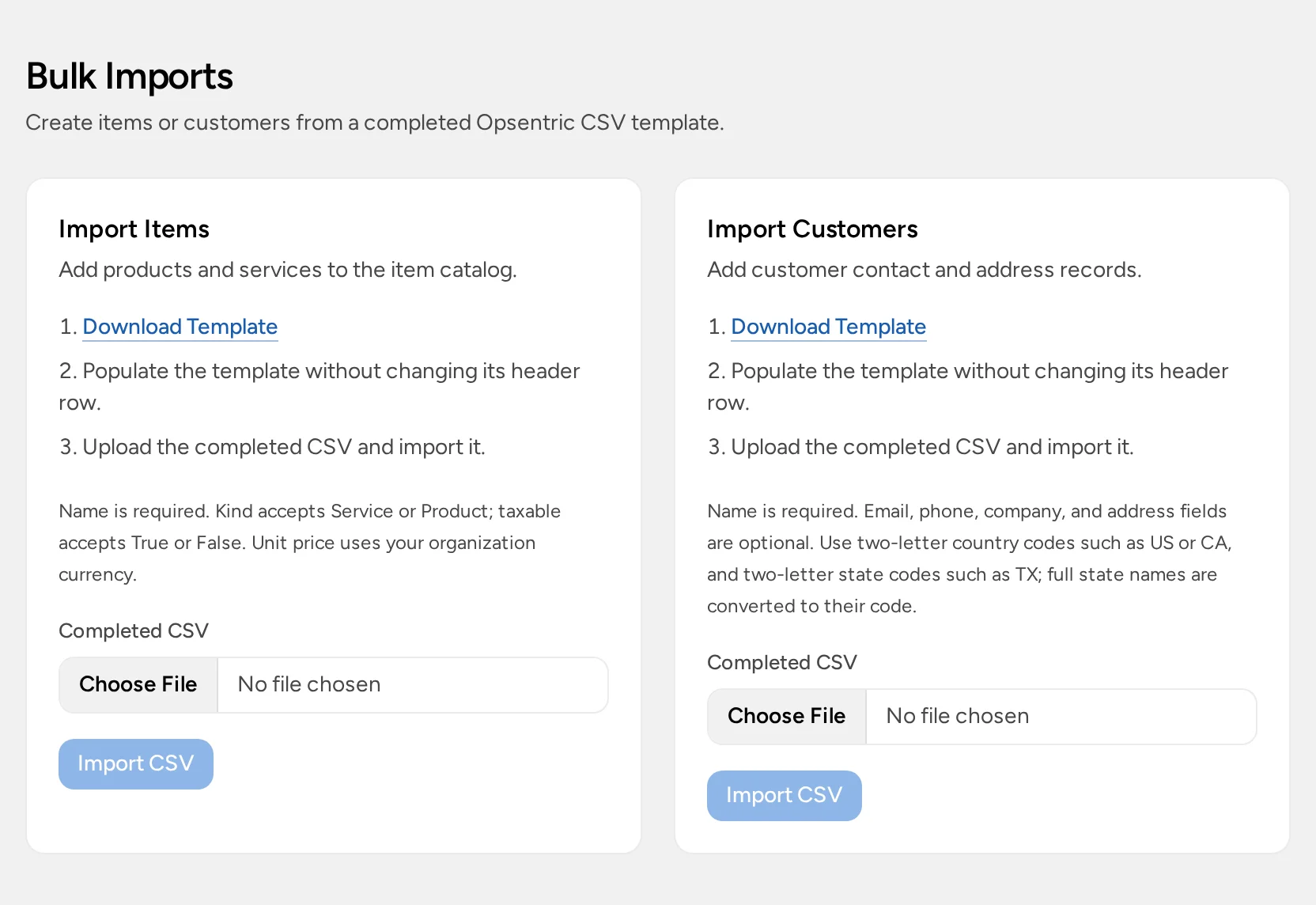
Prepare the file
- Select Download Template on the card you need.
- Keep the header row as it is and add one record per row.
- Save as a comma-separated CSV (UTF-8). A renamed Excel file won’t work.
- Keep each file to 500 rows and 1 MB. Split bigger lists into several files, each with the header row.
There’s no preview: Import CSV creates records straight away. Start with a small batch and check it.
Unrecognized columns are ignored. Put values containing commas in double quotes, for example "Northside, LLC". Format phone numbers and postal codes as text so leading zeros survive.
Item CSV columns
name,description,kind,unitLabel,unitPrice,taxable
Site inspection,Initial site visit,Service,visit,125.50,False
Replacement filter,Standard replacement filter,Product,each,24.00,True| Column | Required? | Values |
|---|---|---|
name |
Yes | Up to 120 characters. Must not match an existing item. |
description |
No | Up to 500 characters. |
kind |
No | Service or Product. Blank means Service. |
unitLabel |
No | Such as hour, visit, or each. Up to 40 characters. |
unitPrice |
No | A plain number like 125.50, in your organization’s currency. No symbols or thousands separators. Blank means zero. |
taxable |
No | True or False. This is yes/no, not a tax rate. Blank means false. |
Categories and images aren’t imported. Add them afterwards; see Build Your Products and Services Catalog.
Customer CSV columns
Only name is required.
| Column | Values |
|---|---|
name |
Up to 200 characters. Required, even if you have a company name. |
email |
A valid address. Must not match an existing customer. |
phone, companyName |
Optional. |
mailingAddressLine1, mailingAddressLine2, mailingAddressCity |
Optional. |
mailingAddressRegion |
State or region, such as TX. Full US state names are converted. |
mailingAddressPostalCode, mailingAddressCountry |
Country as a two-letter code, such as US or CA. |
billingAddress… |
The same six fields for the billing address. |
Billing isn’t copied from mailing; fill in both if they’re the same. Imported addresses don’t create service locations. Add those afterwards; see Create a Customer and Add Service Locations.
Import and check the result
- Select Choose File, pick your CSV, and select Import CSV once.
- Read the created · skipped counts and the reason for each skipped row. Row 1 is the first row after the header.
- Open Customers or Items and spot-check the new records.
Valid rows are saved even when others fail. Put only the skipped rows in a new file, fix them, and import that. Don’t re-import the whole file.
Clear resets the card. It doesn’t undo an import.
Duplicates are skipped, not updated
- Items with the same name as an existing item, including archived ones, are skipped.
- Customers with the same email as an existing customer are skipped. Customers without an email aren’t checked, so importing the same file twice creates duplicates.
To change an existing record, edit it instead of importing it again.
Transaction CSV imports through the API
Transactions can be imported only through the API, not from Bulk Imports. POST /api/transactions/import takes JSON with the CSV text in a csv property and the X-Org-Id header. It needs Bulk import and Manage finance.
date,type,category,vendor,amount,notes| Column | Required? | Values |
|---|---|---|
date |
Yes | YYYY-MM-DD or MM/DD/YYYY. |
type |
Yes | Income or Expense. |
category |
Yes | An existing, active category of the same type. Categories aren’t created for you. |
vendor |
Yes | Vendor or payee name. |
amount |
Yes | A positive number with up to two decimal places. The sign is ignored; type sets the direction. |
notes |
No | Optional. |
The same 500-row limit applies. There’s no duplicate check, so repeating a request creates the transactions again. Imported transactions don’t attach receipts or mark invoices paid.
If something goes wrong
| Message | Fix |
|---|---|
| Select a CSV file. | Export as CSV rather than uploading a workbook. |
| CSV files must be 1 MB or smaller. or at most 500 data rows | Split the file and repeat the header in each. |
| Name is required. when there is a name | Check the header is name, the file uses commas, and values are quoted correctly. |
| already exists | Search existing and archived records. Imports don’t update records. |
| Country must be a two-letter country code. | Use codes like US, not country names. |
| Taxable must be True or False. | Use True or False. |
| Import failed. or no result | Check whether records were saved before trying again. |
For records this screen can’t import, or a larger move, see assisted migration.