
Create a Proposal with Options
Prepare the scope and prices for a customer to compare, then carry their chosen option into the invoice workflow.
For business owners, sales teams, and office staff preparing estimates
On this page
Start from a lead, price one or more alternatives, and publish a comparison link. After the customer chooses, Build Quote creates one editable quote.
What a proposal is
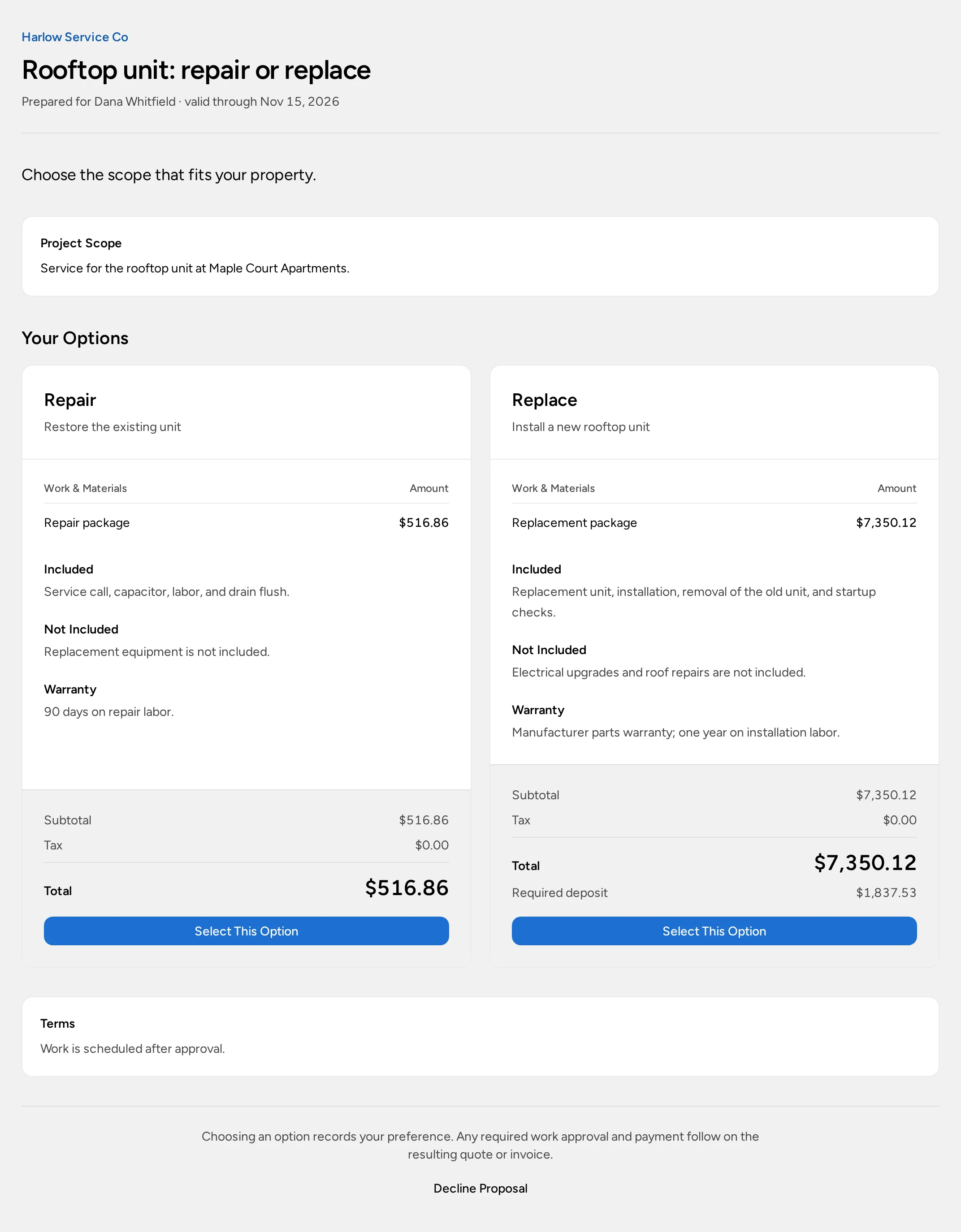
A proposal shows the customer one or more priced options, such as repairing or replacing a unit, and lets them choose one from a link. The options are alternatives; they aren’t added together. Once they choose, you turn that option into a quote.
Start a proposal
Every proposal belongs to a lead.
- Open the lead and select the Proposals tab.
- Select Create Proposal.
You need access to the lead and Manage invoices. A lead can have one active proposal. For a separate purchase, create a separate lead.
When the work comes from a visit
During a Field Service visit, select Recommend Work to record more work the customer may want. Choose Keep Assigned to Me or Send to Office. If you have Manage invoices, you can go straight to Create Proposal. This creates a separate lead; it doesn’t change the visit’s invoice.
Add the options
In Edit Proposal, fill in the Proposal title, Introduction, Overall scope, and Terms. The customer sees all of them. Set Valid through if the offer expires.
For each option:
- Enter an Option label, such as “Replace unit”, and a short Summary.
- Fill in Included scope, Exclusions, and Warranty as needed.
- Add lines with Item Catalog or Add Line Item, and check each quantity, price, and tax.
- Set an Option discount and Required deposit if needed. The deposit isn’t collected here; it carries into the quote.
Select Add Option for another alternative, or Duplicate Option to copy one. Mark one option Recommended to highlight it.
Select Save Draft to save, or Save & Preview to review it. Every option needs at least one priced line before you can publish.
Publish and share
- Publish & Send publishes the proposal and emails the link. Check the Recipient email first.
- Publish Without Sending, in the actions menu, publishes it so you can share the link yourself with Copy Link.
Published prices are fixed, even if your catalog changes. Anyone with the link can open it. Deliveries shows each email; Sent means the provider accepted it, not that the customer read it. Publishing moves an open lead to Quoted.
What the customer does
The customer selects Select This Option, enters their name and email, and selects Confirm Selection. Or they select Decline Proposal and give a reason. After the Valid through date, the page shows Proposal Expired.
A selection records which option they want. It isn’t invoice approval or payment, and it doesn’t book a visit or mark the lead Won.
Change the offer
- Before the customer responds: select Revise to edit a copy. The current link stays live until you publish the new version, which replaces it.
- After they choose: they can’t switch options. Select Withdraw Proposal, give a reason, and create a new proposal.
Build the quote
After the customer chooses, select Build Quote, set the Issue date and Due date, and confirm. Opsentric creates one editable quote with the chosen option’s lines, prices, discount, and deposit. The proposal’s Terms carry over, and its scope becomes the quote’s notes.
Review the quote, then issue and send it. Approval and payment happen on the quote. When the work is approved, schedule it.
If your screen looks different
Create Proposal is missing
You need Manage invoices, and the lead can’t already have an active proposal, quote, or invoice.
Opsentric says the proposal changed
The customer may have responded, or a teammate edited it. Reload before trying again.