
Work Scheduling & Field Service Guide
My Schedule, Scheduling, or My Day? Learn which view to use for your own calendar and for customer visits assigned to your team.
For business owners, dispatchers, and field workers
On this page
My Schedule plans your own time. Scheduling plans the team’s visits. My Day helps you carry out your assigned visits.
Which view to use
Your organization chooses one scheduling experience:
- Self Scheduling gives each person My Schedule, a calendar of their own work blocks.
- Field Service gives dispatchers Scheduling, a board for booking and assigning customer visits, and gives the people doing the work My Day.
| My Schedule | Scheduling | My Day | |
|---|---|---|---|
| Use it to | Plan your own time | Book and assign team visits | Work through your assigned visits |
| Experience | Self Scheduling | Field Service | Field Service |
| Records | Titled blocks, optionally linked to a customer | Visits with a service location and assignees; schedule blocks | Your visits for the day, with site, notes, and equipment |
| Quotes and invoices | Not linked to blocks | Linked to visits | Linked to visits, if your role allows |
What you see also depends on your role.
My Schedule is not a private personal calendar. Administrators and dispatchers may see block titles and notes, so keep personal details out of them.
Create a schedule block
With Self Scheduling, anyone can manage their own blocks.
- Open Schedule → My Schedule and choose the day.
- Select New Schedule Block.
- Enter a Title, Date, Start time, and Duration. Editing the end time switches Duration to Custom.
- Optionally, link a customer and add notes.
- If the time is outside your working hours, tick the acknowledgement. If Opsentric reports a conflict, choose another time.
- Select Save Block.
A block belongs to one person. It can name a customer, but it has no service location, crew, quote, or invoice. Use a Field Service visit when you need those.
Plan team visits in Scheduling
Open Field Service → Scheduling. You need Manage schedule, and your organization must be using Field Service.
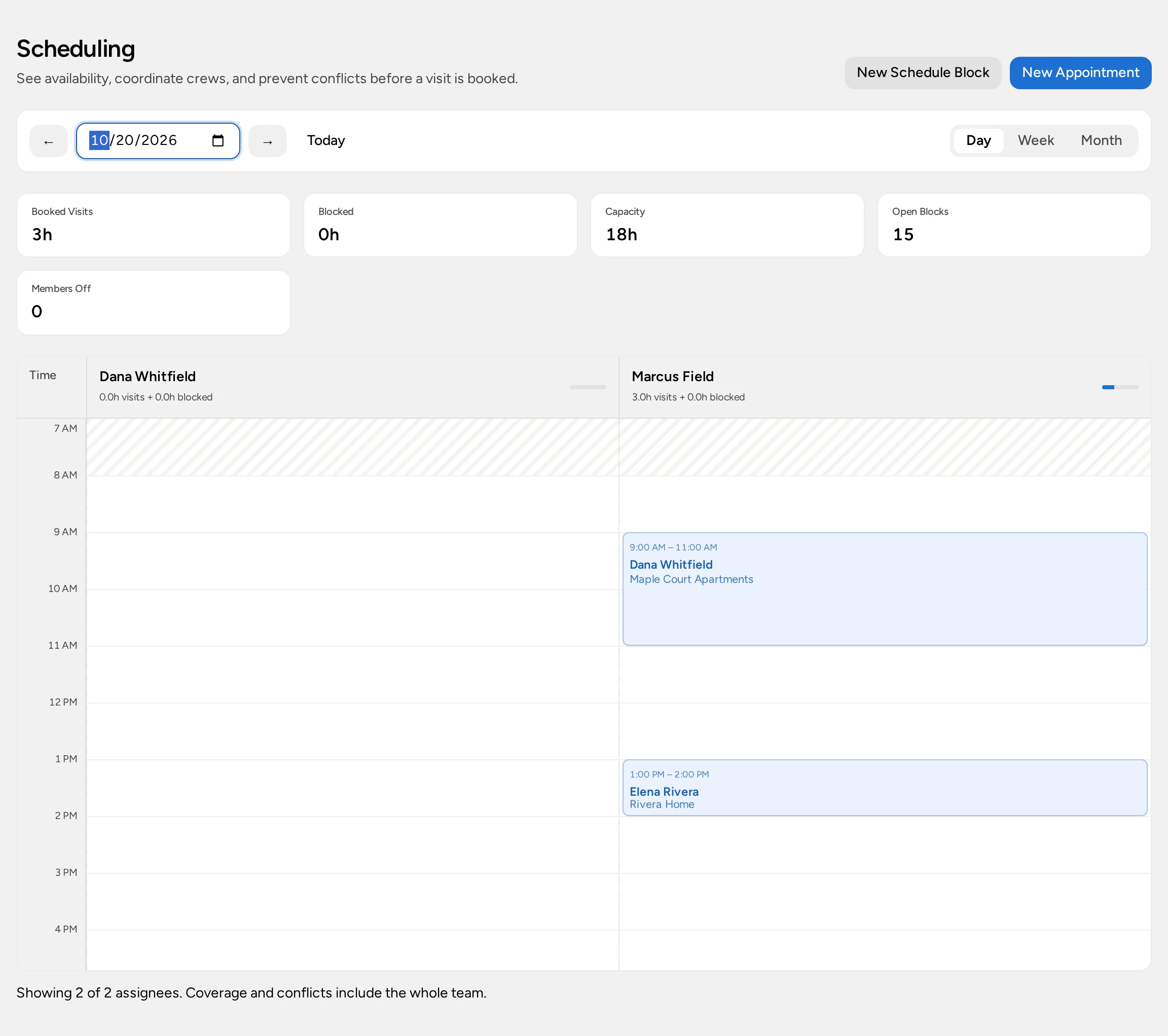
- Pick Day, Week, or Month and check who’s available.
- Select New Appointment.
- Choose the customer and Service location, the date and time, and the assignees, or a saved crew.
- Add visit notes for the technicians and save.
If you can manage invoices, Opsentric then offers Create Quote to start the visit’s quote now, or Not Now.
Needs Attention lists visits that need a decision, such as conflicts with approved time off. Approving time off never moves appointments; you have to reschedule them.
With the Sales & Service structure, New Appointment also asks for an Appointment type. Sales visits are for estimating; service visits are for doing the work.
Book work before you know who will do it
A service visit can be saved without an assignee if it’s far enough ahead. The default is 30 days; your organization can change it. Unassigned visits don’t reserve anyone’s time.
- Unassigned Appointments lists them for the dates on screen. Select Assign Staff to assign people.
- When an unassigned visit comes within the lead time, it also appears in Needs Attention until it’s assigned, completed, or canceled.
- Unassigned Work lists approved invoices that don’t have a visit yet. Select Schedule Work to book one. See scheduling from an invoice.
- Service Plans → Needs Scheduling lists maintenance visits that are due. See Set Up Service Plans.
Email a customer about a visit
When booking, rescheduling, or canceling, tick Email customer to send them a notice. It’s off by default. You can also open an appointment and select Send Confirmation. The email includes the time, address, and your business contact details, not internal notes.
The appointment’s Customer Email history shows each send. Accepted means the email provider took the message, not that the customer read it. If a send’s result is uncertain, ask support before sending again.
Sending needs Manage schedule and an email address on the customer record.
Work through a visit in My Day
Open Field Service → My Day to see the visits assigned to you for the chosen Visit date.
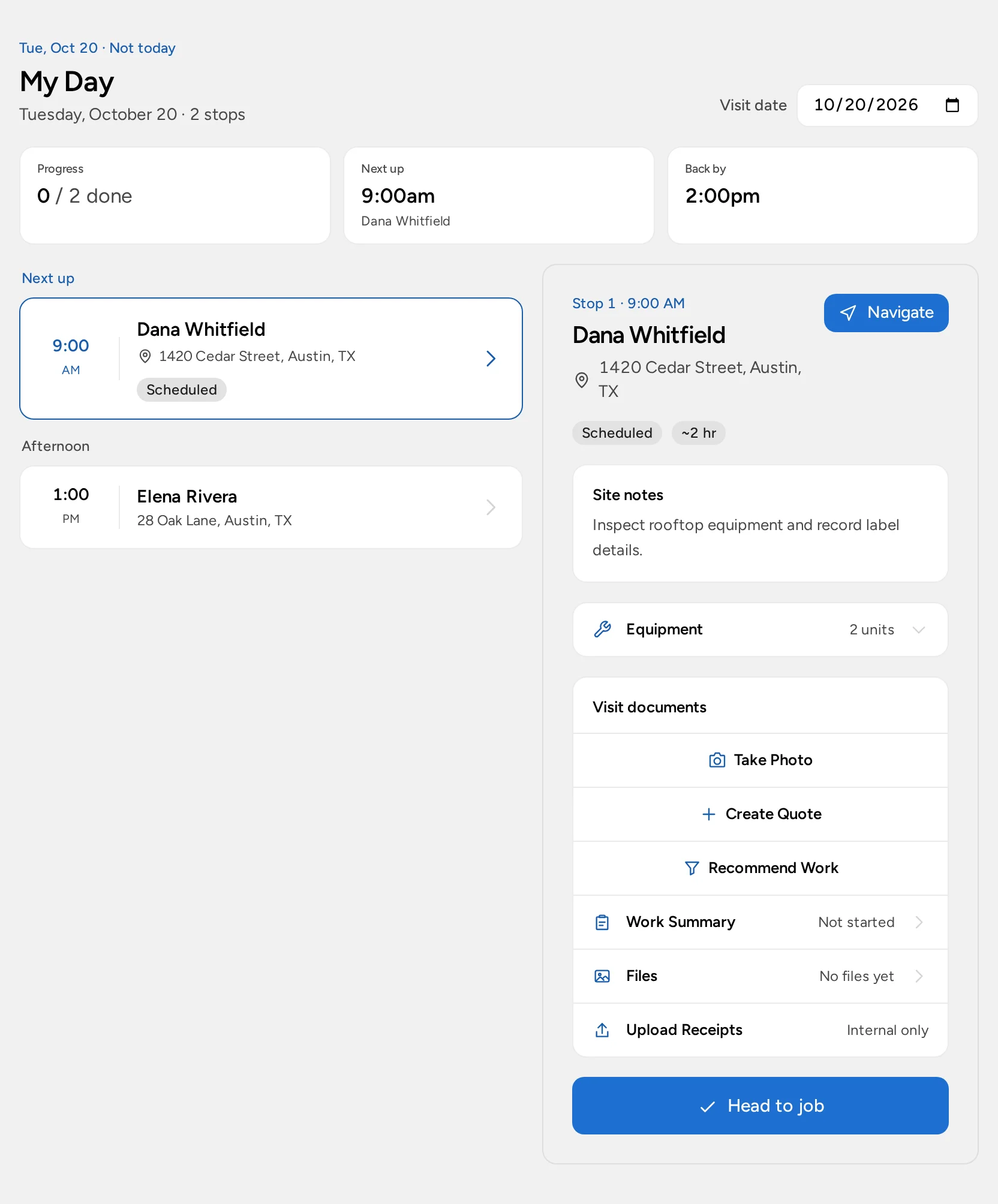
- Select a stop. Check the address, Site notes, and Equipment. See Record Equipment at a Service Location.
- Use the progress button. With multi-step progress, that’s Head to job, Start visit, then Complete. With simple progress, it’s Mark Complete.
- Create or open the visit’s quote if your role allows it. You can do this before or during the visit.
- Record the work in Work Summary and add photos under Files. See Send Post-Work Summaries.
- If you bought supplies, select Upload Receipts. These go to your finance team, not the customer. See upload from a service visit.
- When you complete the visit, Opsentric shows whether an invoice and summary exist. For a service plan visit, it also asks for the Actual service date.
Completing a visit doesn’t send the invoice or summary, and doesn’t record a payment.
If you spot more work the customer may want, select Recommend Work to create a lead without changing today’s invoice. See when the work comes from a visit.
Review past and upcoming visits
Field Service → Appointments lists visits by month, with Future Appointments, Past Appointments, and All Appointments views, a status filter, and search. Dispatchers see everyone’s visits; others see their own.
Open a visit to see its Overview, Documents, Invoice, and Work Summary tabs. Use Open in Scheduling to reschedule or reassign, or Open in My Day to work the visit.
Change how scheduling works
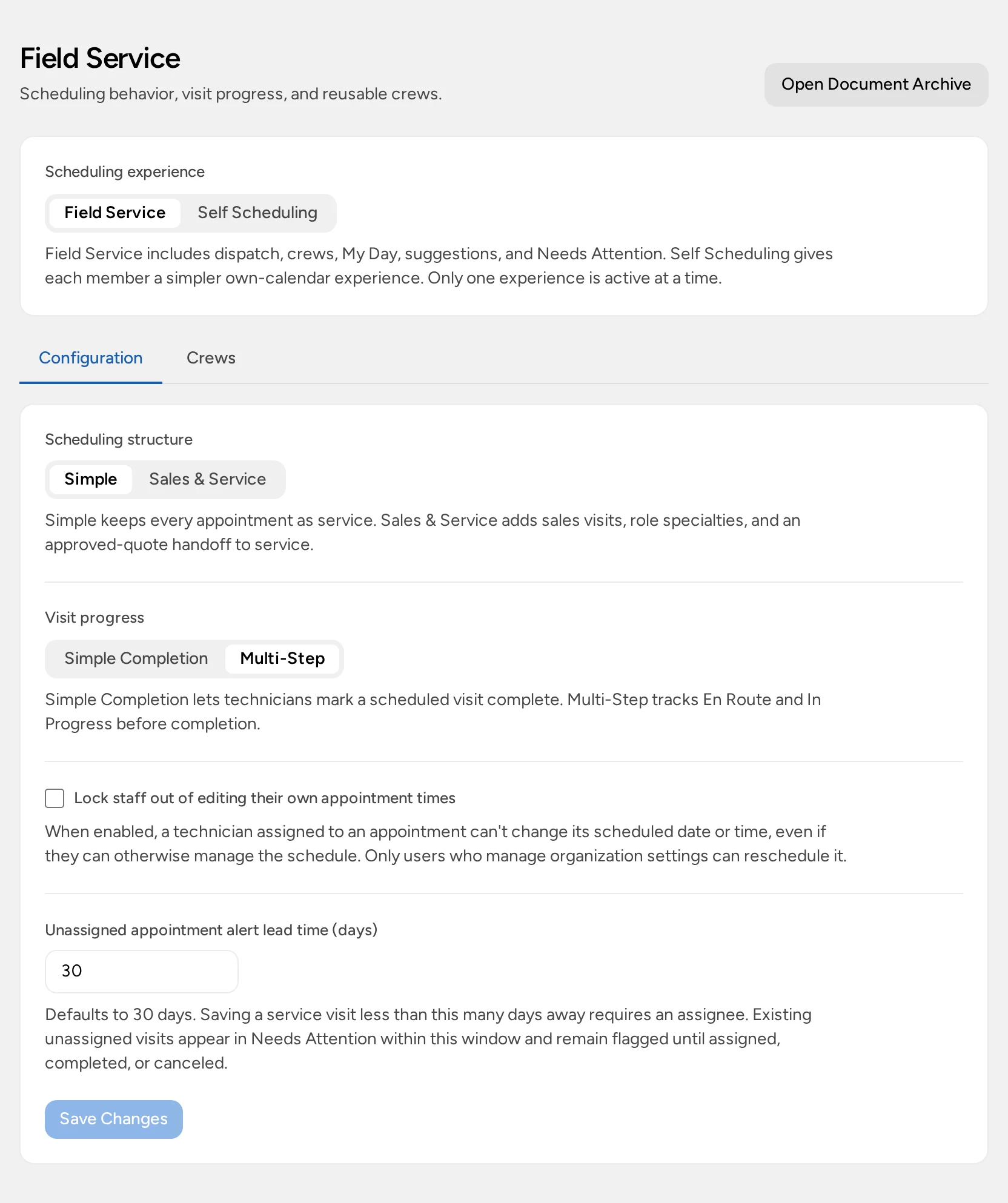
People with Manage settings can change these under Administration → Field Service:
- Scheduling experience: Field Service or Self Scheduling. Switching keeps existing appointments, settings, and crews.
- Scheduling structure: Simple (every visit is a service visit) or Sales & Service.
- Visit progress: Simple Completion or Multi-Step.
- Lock staff out of editing their own appointment times.
- Unassigned appointment alert lead time (days).
Saved crews are on the Crews tab.
If your screen looks different
You see My Schedule, but not My Day
Your organization uses Self Scheduling.
You see My Day, but not Scheduling
You can see your own visits but don’t have Manage schedule.
A schedule block is missing from My Day
My Day only shows assigned Field Service visits. Schedule blocks don’t appear there.
Times look different from your device’s clock
Opsentric shows times in your organization’s time zone, not your device’s.