
Manage Sales Leads and Follow-Ups
Record what the customer needs and when to follow up, then prepare a proposal when you're ready to price the work.
For business owners, sales teams, and office staff following up on new work
On this page
Create a lead for a sales opportunity, assign responsibility, and keep its next follow-up current. Use proposals to price the work and record the lead's outcome separately.
Leads and customers
A customer record says who you work with. A lead records one piece of work they might buy, such as a replacement unit. Every lead belongs to a customer, and one customer can have many leads.
A lead’s estimated value isn’t revenue, and its follow-up time doesn’t book an appointment.
Who can see which leads
- Manage leads lets you see and work every lead, and assign leads to teammates.
- View own leads lets you create and work your own leads and the unassigned pool. You can’t see leads assigned to others.
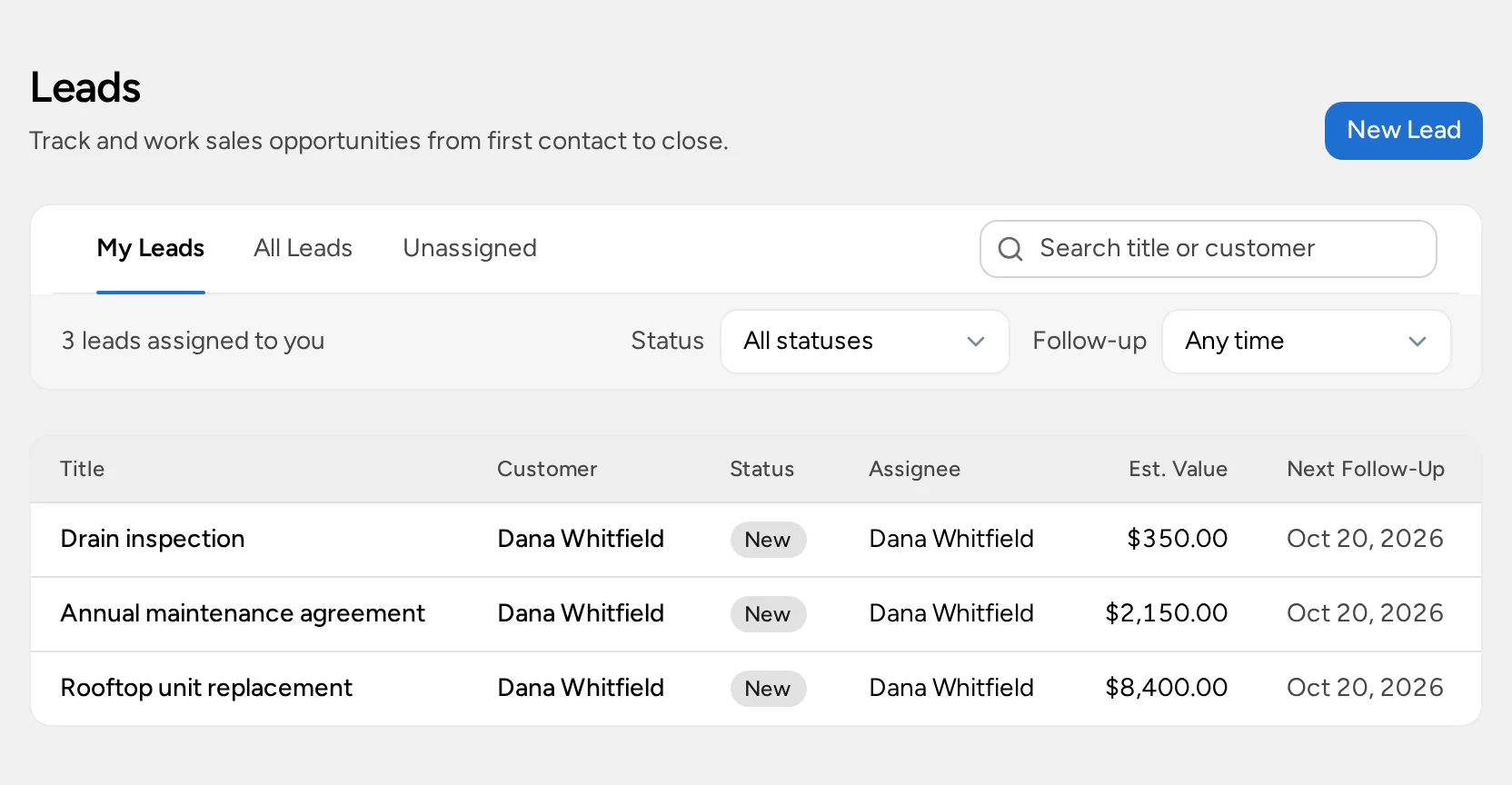
The My Leads, Unassigned, and All Leads views all stay within your access. Filter with Status and Follow-up (Overdue, Next 7 days, Not scheduled), or search by title or customer.
Create a lead
- On Leads, select New Lead.
- Choose the Customer, or add a new one from the picker.
- Enter a Title for the work, such as “Replace upstairs air conditioner”.
- Choose the Source and, optionally, Source detail.
- Set the Preferred contact method.
- Add an estimated value and Expected close date if you know them.
- Set Next follow-up date and Next follow-up time. The time defaults to 09:00.
- Select Create Lead.
New leads are assigned to you. With Manage leads, you can choose Unassigned — shared queue instead.
To change the details, select Edit Lead, then Save Lead. The customer can’t be changed. Update contact details on the customer record.
Leads created from a visit with Recommend Work show Service appointment as the source and link to the Originating visit.
Assign a lead
On the lead’s Detail tab, under Pipeline:
- With Manage leads, choose someone from the Assignee list, or Unassigned.
- With View own leads, select Claim this lead to take an unassigned lead, or Release to return yours to the pool.
Leave a note before releasing a lead so the next person knows where things stand.
Log contact and set the next follow-up
After each conversation, select Update Status:
- Choose a Status: New, Contacted, Qualified, Quoted, Won, or Lost. You can skip stages.
- In What happened?, write what was said and agreed.
- Set the next follow-up date and time, or clear both.
- Select Save Update.
Updates appear on the History tab. Use the Notes tab for background your team should know, such as the customer’s priorities.
Price the work with a proposal
On the lead’s Proposals tab, select Create Proposal. See Create a Proposal with Options. This needs Manage invoices as well as access to the lead.
A lead can have one active proposal. Publishing it moves an open lead to Quoted. The customer’s choice doesn’t mark the lead Won by itself, and declining doesn’t mark it Lost. After the customer chooses, select Build Quote on the proposal to create the quote.
Close or reopen a lead
Select Update Status, choose Won or Lost, add an optional note or reason, and select Save Update. Closed leads leave the open views and follow-up filters. Clear the follow-up if it no longer applies.
To reopen a lead, find it with the Won or Lost status filter, select Update Status, and choose an open status.
Won is a sales outcome. It doesn’t record a payment or book work. When the job is ready, schedule it; see the scheduling guide.
If your screen looks different
Leads is missing, or you can’t see a teammate’s lead
You need Manage leads to see leads assigned to others. Ask your administrator.
Create Proposal is missing
You need Manage invoices, and the lead can’t already have an active proposal, quote, or invoice.