
Create a Customer and Add Service Locations
Save the customer's contact and billing details, add the places where you work, and start a quote from their record.
For business owners, office staff, and customer-facing teams
On this page
Save the customer's contact and address details first, then add any work sites and create a quote from the same record.
Create the customer record
Search Customers before adding someone, so you don’t create a duplicate. Search works on name, company, email, phone, or address. Tick Include archived to search older records too.
- Select New customer.
- Enter a Name. It’s the only required field.
- Add Email, Company, and Phone if you have them. You’ll need an email address to email quotes and invoices.
- Fill in the Mailing address and Billing address. Tick Same as mailing address if they match.
- Select Save customer.
To find the new record, search for it or choose Recently added. If your organization has Address Autocomplete, pick a suggestion as you type in Address Line 1, then check the filled-in fields.
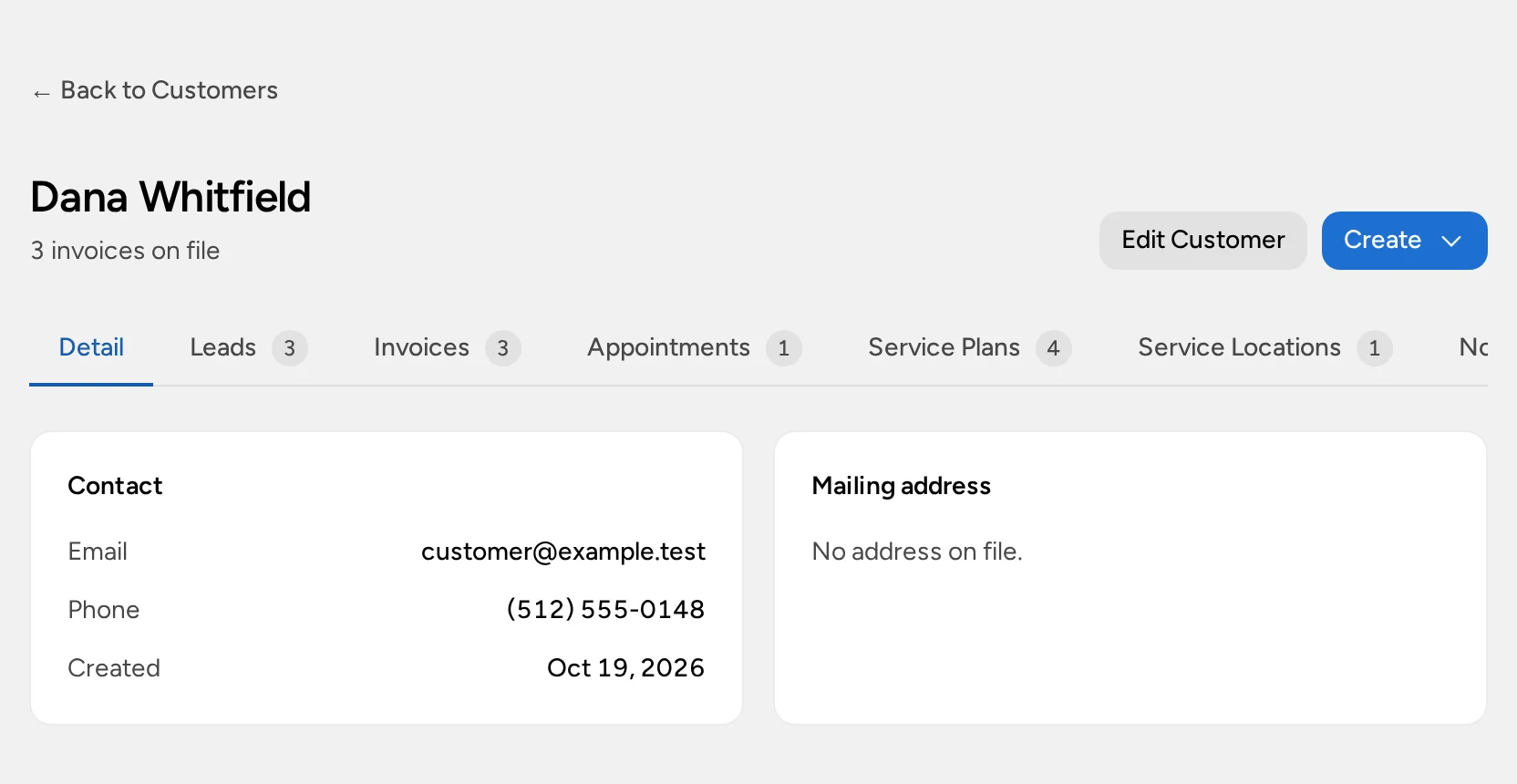
Mailing, billing, and work addresses
The mailing and billing addresses are for post and invoices. The places where your team works are service locations, which you add separately. Saving a customer address doesn’t create one.
For example, a property manager might get mail at their office, send bills to accounts payable, and have you work at three apartment buildings. Save the first two on the customer, and add each building as a service location.
Update a customer
Open the customer, select Edit Customer, make your changes, and select Save customer. Edit the existing record rather than creating a new one when details change.
If a service location was created from one of the customer’s addresses, changing that address updates the location too. A site added with Add Site has its own address. After any address change, check the site’s tax rate.
Add a service location when available
The Service Locations tab needs Field Service on your organization’s plan. Adding and editing sites needs Manage schedule.
- Open the customer and select Service Locations.
- Select Add Site. If the billing address is where you work, select Use as Site on the Billing address row instead.
- Enter a New site name, such as “Main office” or “Warehouse”, and the site’s address. For US addresses, choose the County.
- Leave Tax rate blank to use the organization default, or enter a percentage such as
8.25. - Add Notes your team needs on site, such as parking arrangements. Keep gate codes and other access credentials in your organization’s secure access process, not broadly visible notes.
- Select Add Site.
If the site shows Suggested rate, check it and select Confirm Rate to use it. Suggestions are never applied automatically.
To change a site, select Edit, then Save Changes. Select Archive for a site you no longer service; it can’t be chosen for new work.
Each site can also hold a list of the equipment you service there. See Record Equipment at a Service Location.
Start a quote for the customer
- Open the customer and select Create → Quote.
- Check the customer and, if shown, the Service location. The location sets the default tax rate.
- Add the work, review the dates and totals, and select Save Quote.
Saving doesn’t email the quote. Follow Create and Send a Customer Invoice to issue and send it. A quote started here isn’t linked to any visit; to link one, start it from the appointment.
Start other work from the customer
The Create menu shows what you can start for this customer, depending on your access:
- Lead: a sales opportunity. See Manage Sales Leads.
- Appointment: a Field Service visit, or a block in your own My Schedule if your organization uses Self Scheduling. See the scheduling guide.
- Service Plan: a maintenance agreement at one of the customer’s sites. See Set Up Service Plans.
- Service Location: a new work site.
If your screen looks different
You can see customers but can’t edit them
Creating and editing customers needs Manage customers. View finance alone lets you view the list.
The customer doesn’t appear after saving
Clear the search box, or search for part of the name. If you’re not sure the save worked, search before entering the customer again.
Service Locations or Add Site is missing
Service locations need Field Service. Adding and editing sites needs Manage schedule; with only your own schedule, you can view sites but not change them.
Use as Site is missing or disabled
A site already uses the billing address, or the address is incomplete. Select Complete Billing Address (or Add Billing Address) to fill it in.
Create → Quote is missing
Quotes need Manage invoices, even if you can manage customers.