
Record Equipment at a Service Location
Save the make, model, serial number, and photos of each unit once, so the next technician has them before arriving.
For dispatchers, office staff, and field technicians who service customer equipment
On this page
Equipment belongs to a service location. Office staff can manage it anywhere; technicians can update it at sites where they have a visit.
What equipment records are for
Each service location can have a list of equipment: the units your team services there, such as a furnace, a rooftop unit, or a water heater. For each one you can record the make, model, serial number, the date on its label, who installed it, notes, and up to 12 photos.
The list appears in two places:
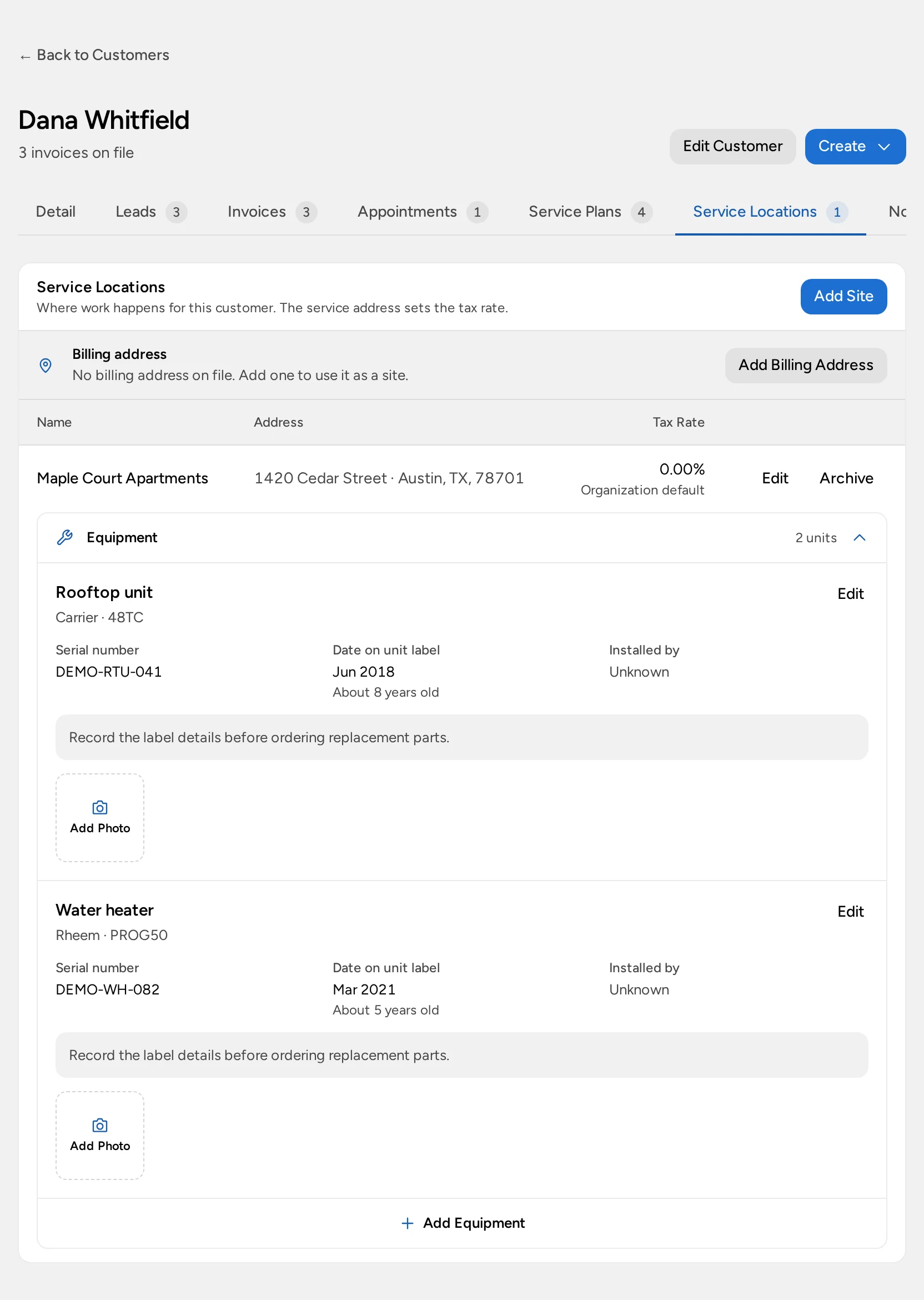
- On the customer’s Service Locations tab, under each site.
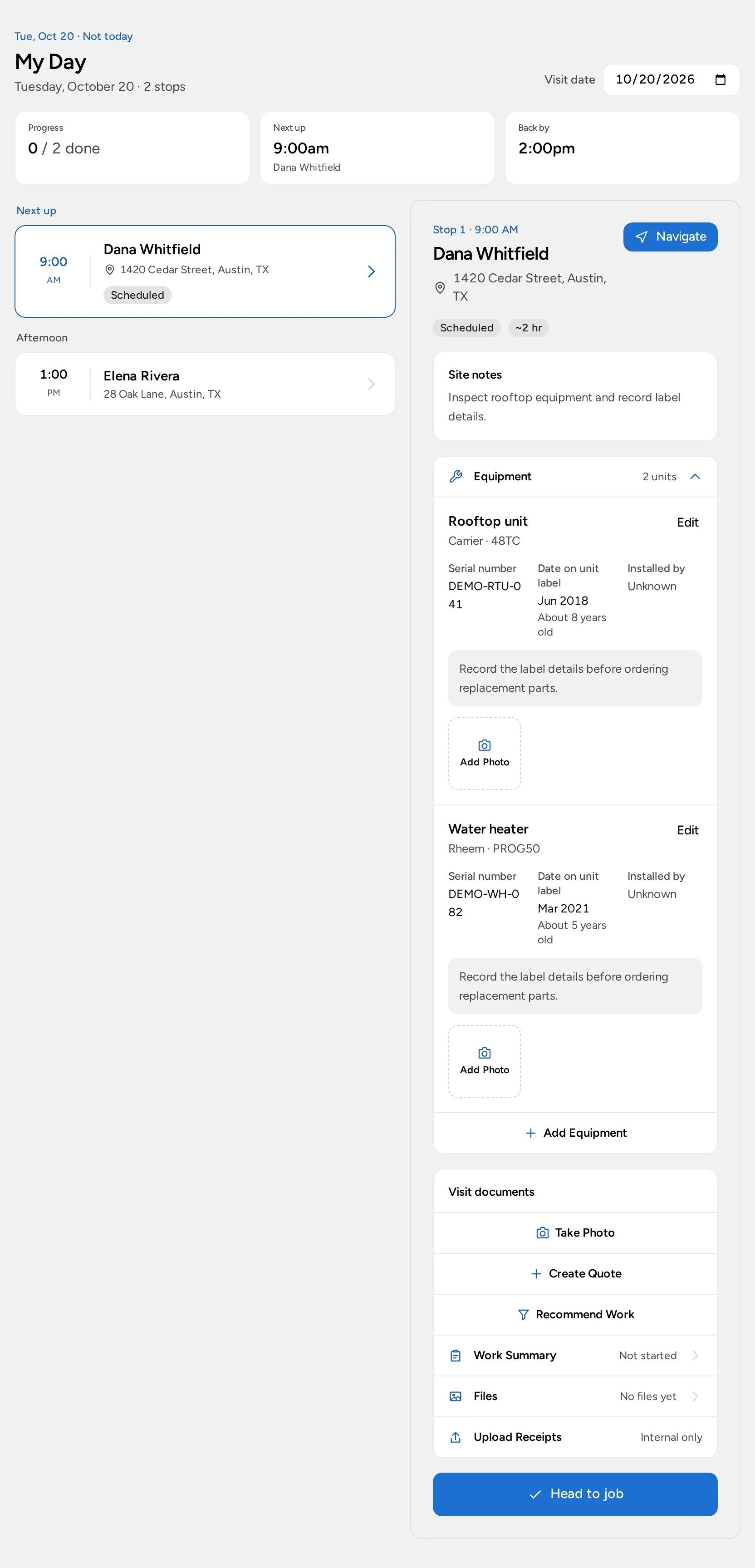
- On each stop in My Day, so technicians see it on site.
Equipment records are internal. Customers don’t see them.
Who can view and change equipment
Equipment needs Field Service on your organization’s plan.
- People with Manage schedule can view and change equipment at any site.
- Technicians who see their own schedule can view equipment at sites they can open, and add or edit it at sites where they’re assigned to a visit that hasn’t been canceled.
- Equipment at an archived service location can be viewed but not changed.
Add equipment
- Open the customer and select the Service Locations tab, or open the stop in My Day.
- Open the Equipment row for the site. It shows how many units are recorded.
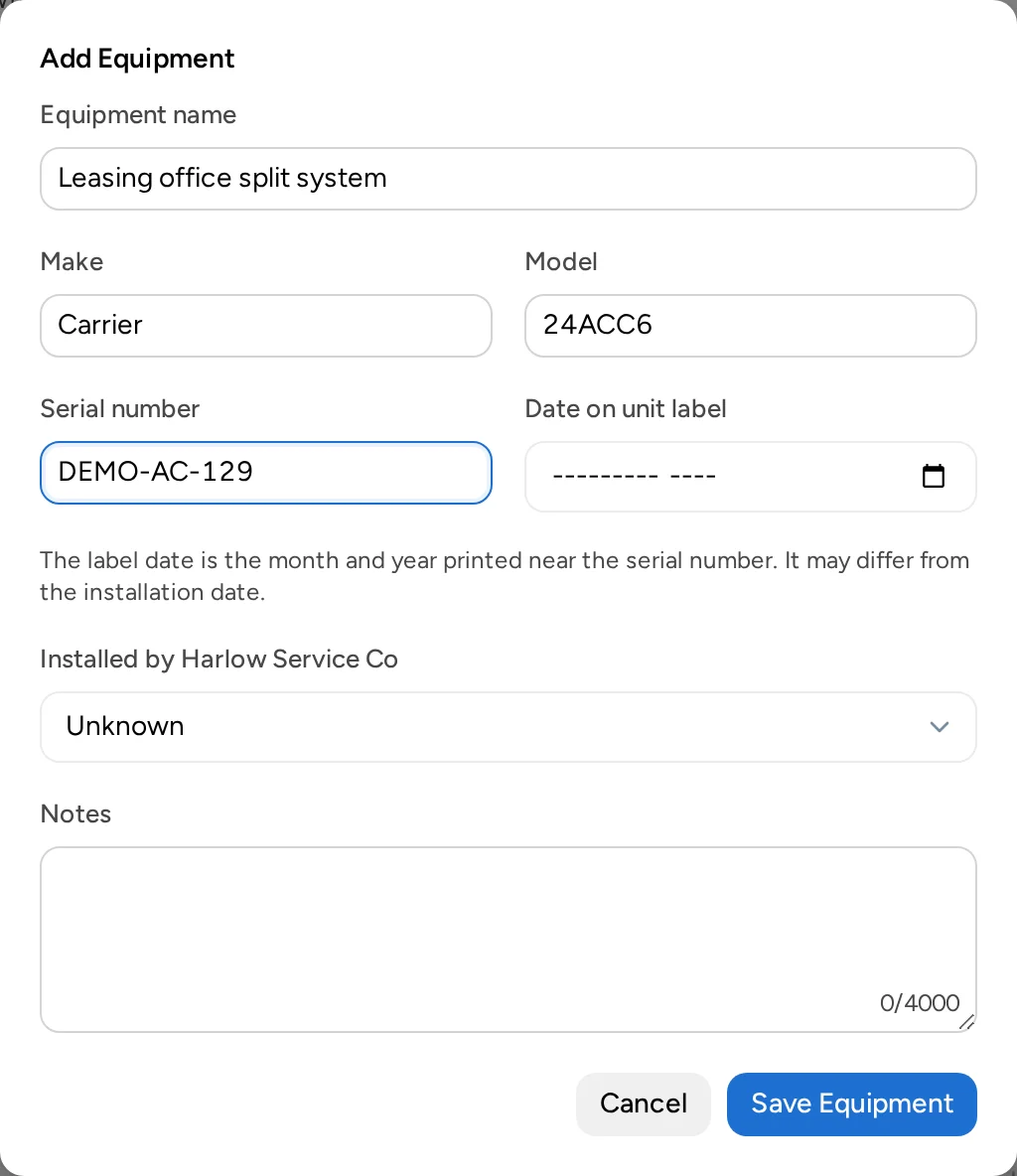
- Select Add Equipment.
- Enter an Equipment name your team will recognize, such as “Upstairs furnace” or “Rooftop unit 1”. This is the only required field.
- Add the Make, Model, and Serial number from the unit’s label.
- Set Date on unit label to the month and year printed near the serial number. Opsentric shows the unit’s approximate age from it. This date can differ from when the unit was installed.
- Set Installed by to Yes, No, or Unknown.
- Add any Notes, such as filter sizes or where the unit is.
- Select Save Equipment.
Add photos
A photo of the unit and its serial label saves the next technician from climbing up to read it.
- On the equipment’s card, select Add Photo.
- Take a photo or choose one. JPEG, PNG, and WebP images up to 10 MB are accepted.
Each unit can have up to 12 photos. Select a photo to open it full size, or the × on its corner to remove it. Opsentric strips location data from uploaded photos. Photos count toward your organization’s storage.
Update or archive equipment
Select Edit on a unit to change its details, then Save Equipment.
When a unit is replaced or removed, select Edit, then Archive Equipment. The unit stays on the list with an Archived badge, and its photos are kept, so you still have its history. Select Restore to make it active again. You can’t add or remove photos on an archived unit.
When you replace a unit, archive the old one and add the new one rather than editing the old record.
If your screen looks different
The Equipment row is missing
Equipment needs Field Service and a role that can see the schedule. Self-scheduled blocks in My Schedule don’t have a service location, so they have no equipment.
Add Equipment or Edit is missing
You don’t have Manage schedule and you aren’t assigned to a visit at this site, or the service location is archived.
A photo won’t upload
Check that it’s a JPEG, PNG, or still WebP image under 10 MB, and that the unit doesn’t already have 12 photos. If Opsentric says the storage limit is reached, ask your administrator.