
Daily Business Routines
Use the checklist for your role to plan the day and catch unfinished work before you leave.
For business owners, office staff, field workers, and finance managers
On this page
Start with the work assigned to you. Record customer changes and expenses while the details are fresh, then check unfinished visits and invoices before closing the day.
Before Your First Workday
If you manage organization settings, the Dashboard starts with a Getting Started checklist: add your logo, products and services, and first customer, schedule a visit, create a quote, accept online payments, and invite your team. Each step ticks itself off when it’s done. Set Up Your Opsentric Organization explains each choice.
Then check the settings that affect everyone:
- Time zone, under Administration → Business Details. All appointment times use it, whatever someone’s phone is set to.
- Organization currency. It can’t be changed after setup.
- Who needs which access. See Invite Your Team and Assign Roles.
- Your scheduling experience: My Schedule for your own time, or Field Service for dispatch and My Day. See the scheduling guide.
Moving from another system? Read bulk imports, or see Enterprise migration support.
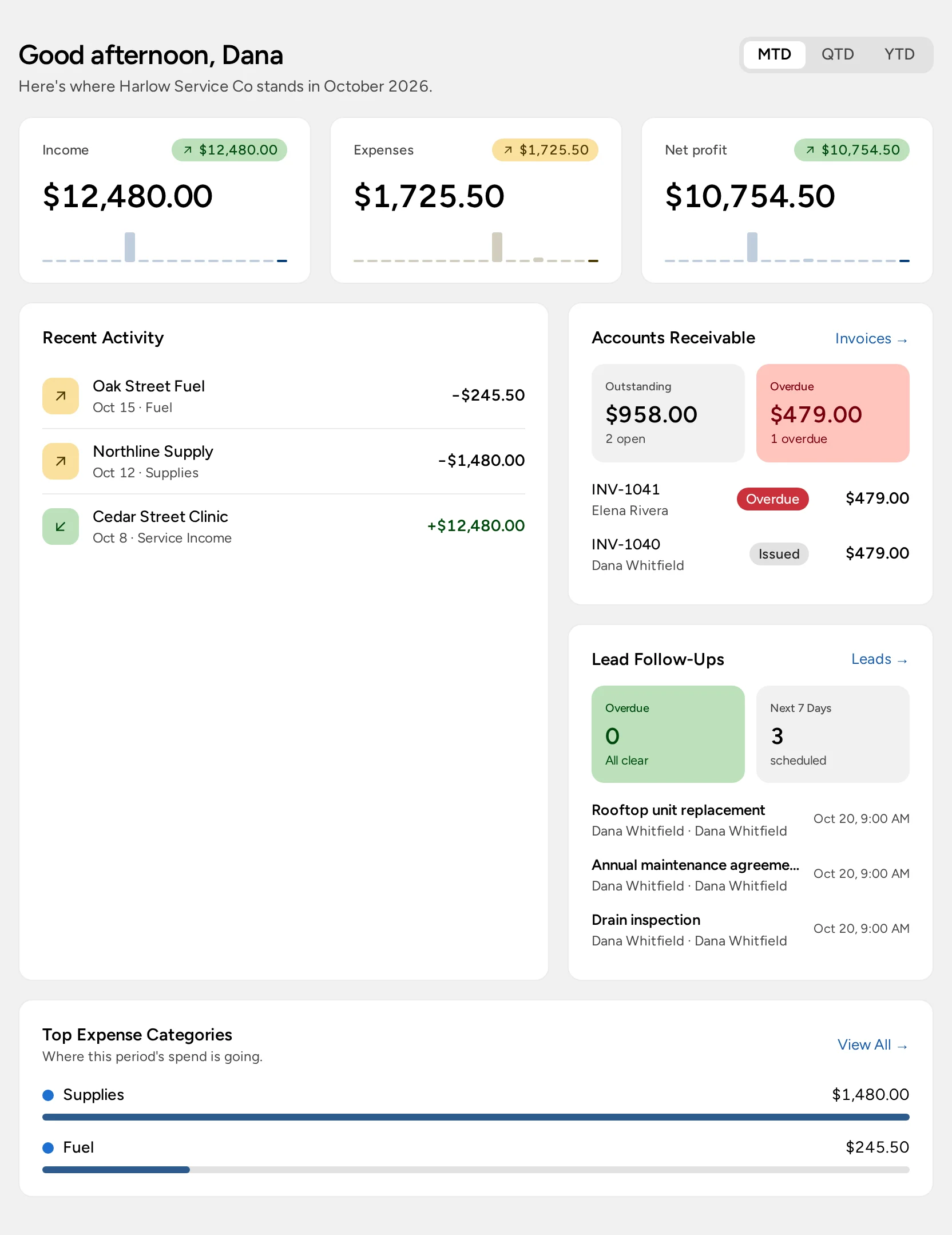
Your First Customer and Invoice
- Add the customer, with a service location if you’ll visit them.
- Create a quote for the work. If they want to compare options, use a proposal first.
- Schedule the work in My Schedule or Scheduling.
- Do the work. With Field Service, update the visit in My Day.
- Issue and send the invoice, and record the payment.
- Upload receipts for anything you bought.
Completing a visit doesn’t send the invoice or record a payment. Those are separate steps.
A Solo Owner’s Routine
- Morning: Open My Schedule, or My Day if you use Field Service, and check today’s work.
- During the day: Update customer details as they change. Search Customers before adding someone new.
- End of day: Check Invoices → Quotes for work ready to issue and Awaiting Approval for quotes the customer hasn’t accepted. Upload the day’s receipts.
An Office or Dispatcher’s Routine
- Morning: In Scheduling, check who’s working and clear Needs Attention.
- Booking: Confirm the customer and service location, add notes for the technicians, and assign people or a crew.
- Queues: Work through Unassigned Appointments, Unassigned Work, and Service Plans → Needs Scheduling. See book work before you know who will do it.
- Billing: Check Service Plans → Needs Invoicing for completed plan visits, and Invoices → Overdue for follow-ups.
- Leads: Check My Leads, Unassigned, and Overdue Follow-Ups.
- Before leaving: Check tomorrow’s visits have the right people, sites, and notes.
Approving time off doesn’t move appointments. Reschedule affected visits yourself.
A Field Worker’s Routine
- Open Field Service → My Day and check the Visit date.
- Open each stop and read the address, notes, and equipment before you travel.
- Move the visit along with Head to job, Start visit, and Complete, or Mark Complete.
- Update the site’s equipment if you find something new or replace a unit.
- Record the work in Work Summary and upload receipts with Upload Receipts.
- Review the closeout check and complete the visit.
If Upload Receipts is missing, ask the office how to submit receipts.
A Finance Manager’s Routine
- Receipts: Open Receipts → Needs Review. Choose All to see everyone’s uploads and All Time for older ones. Check the vendor, date, amount, and category (treat any suggested details as a starting point), then attach it to an existing transaction or record the expense. See the receipt guide.
- Payments: Review Invoices → Overdue. Record payments on the invoice itself, which creates the income transaction. Don’t add a second one in the ledger.
- Reconcile: Compare the Ledger with your bank records. Online card payments are recorded as income, with Stripe and Opsentric fees as a separate expense. See how processing fees are recorded.
Opsentric keeps records organized; it doesn’t replace your accountant’s advice.
Keep Working Hours and Time Off Current
Open Me → My Profile → Availability.
- Under Working Hours, set your usual hours for each weekday and select Save Working Hours.
- To request time off, choose a Type under Request Time Off, set the dates, add a Note if needed, and select Request Time Off.
- Track requests under My Time Off. Select Cancel Request to withdraw a pending one.
Before You Close the Day
- Customer and site changes are saved.
- Completed visits are marked complete, and anything the customer needs has been sent.
- Quotes are issued, and approvals and payments are followed up.
- Receipts are uploaded.
- Tomorrow’s schedule is right.
Agree who will handle anything unfinished.