
Build Your Products and Services Catalog
Save what you sell once, with its price, and add it to quotes in a couple of clicks.
For business owners and office staff who set prices and prepare quotes
On this page
Catalog items fill in a quote line for you. The line is a copy, so changing an item later won't rewrite quotes you've already made.
Why keep a catalog
The catalog is your list of products and services with their standard prices. When you build a quote or a proposal, Item Catalog lets you pick from it instead of typing the description and price each time. Staff price jobs the same way, and your reports show consistent names.
You don’t have to catalog everything. One-off work can still go on a quote as a free-text line.
Check your access
Items appears in the sidebar for people with Manage catalog or View finance. Only Manage catalog can add, change, archive, or delete items and categories. Anyone who can manage invoices can pick catalog items on a quote.
Add an item
- Open Items and select New Item. In an empty catalog, select Add Your First Item.
- Enter a Name, such as “Standard service call” or “Air filter, 16x25”. This is what appears on the quote line.
- Choose a Kind: Service for labor and visits, or Product for parts and materials.
- Choose a Category, or leave it Uncategorized.
- Enter the Unit price in your organization’s currency, and a Unit label such as
hr,visit, oreaif it helps. - Add a Description if staff need more detail when choosing the item.
- Tick Taxable if tax normally applies.
- Select Create Item.
Opsentric opens the new item. Check the price, kind, category, and tax setting.
To add a photo, go to Item Image on the item’s page and upload a JPEG, PNG, or WebP file up to 2 MB. The image appears next to the item when staff browse the catalog on a quote, which helps with parts that look alike. Remove Image takes it off again.
How taxable items are priced on a quote
Taxable is a yes-or-no setting, not a rate. When you add a taxable item to a quote, the line takes the tax rate for the quote’s service location, or your organization’s default rate if the location doesn’t have one. Items that aren’t taxable start at 0%.
You can change a line’s Tax % on an individual quote. That only affects that line. See Create and Send a Customer Invoice for how quote tax works.
Group items into categories
Categories keep a long catalog easy to browse. You can nest them, for example “Parts” with “Filters” and “Thermostats” underneath.
- Open Items → Categories, or select Manage Categories on the Items page.
- Select New Category.
- Enter a Category name. To put it inside another category, choose a Parent category; otherwise leave it as None.
- Select Create Category.
Use the edit button on a category’s row to rename it or move it under a different parent, and the archive button to hide one you no longer use. Two categories can’t share a name, and an archived category can’t be a parent.
A category can only be deleted when it’s empty. Move or delete its items and any child categories first. Archiving is usually the better choice for a category you’ve used.
These item categories are separate from the income and expense categories in the ledger.
Find items
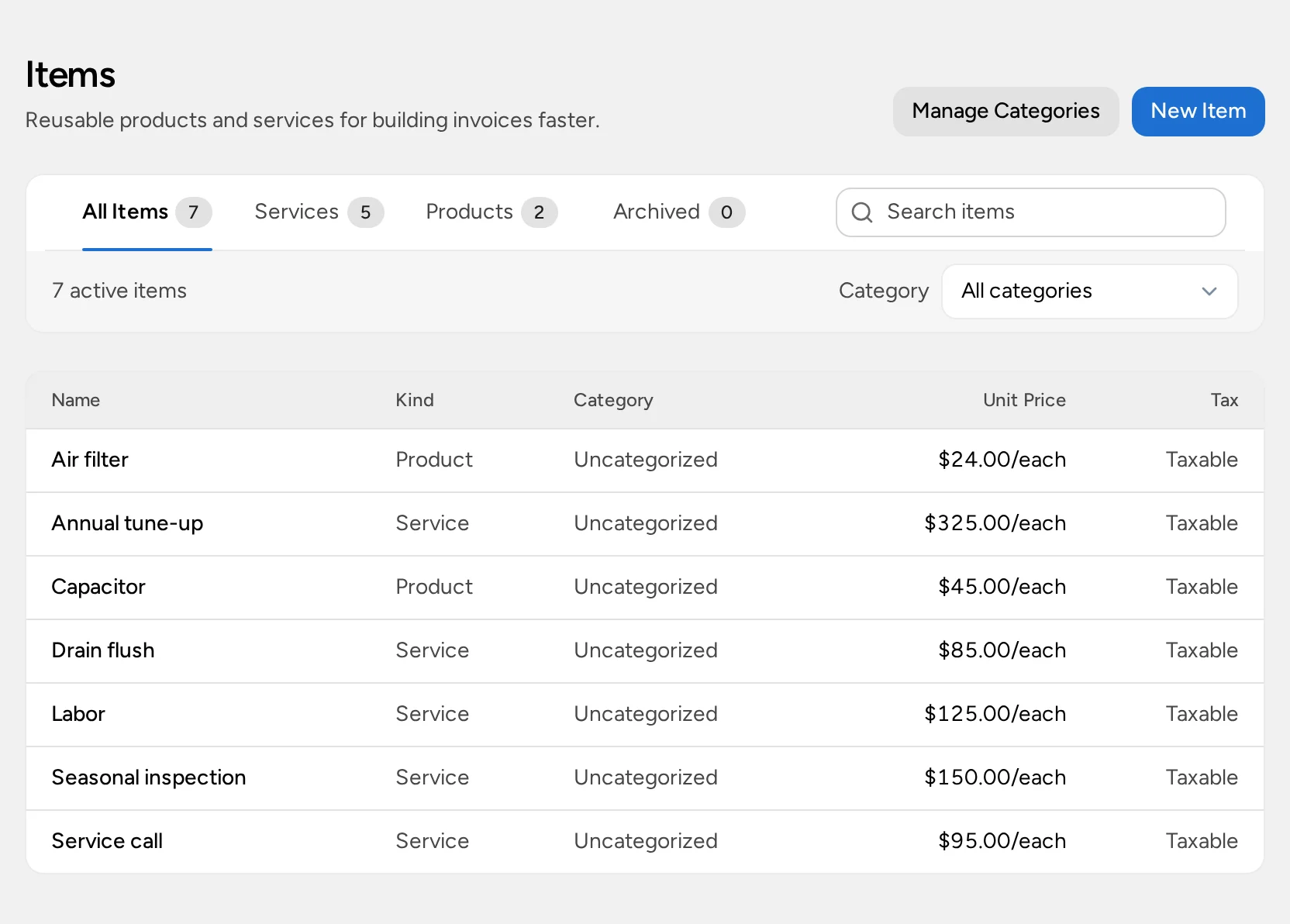
The Items page has All Items, Services, Products, and Archived views. Search by name, or use Category to show one category, including Uncategorized.
Use items on quotes and proposals
In the quote editor, select Item Catalog and choose an item. Opsentric adds a line with the item’s name, unit price, and tax setting. Change the quantity, price, or description on the line if this job is different; that won’t change the item.
The line is a copy. If you change an item’s price later, quotes and invoices you’ve already created keep their original prices. Proposals work the same way, and once a proposal is published its prices are fixed. See Create a Proposal with Options.
Change, archive, or delete an item
- Edit Item changes the name, price, category, or anything else. Select Save Changes. New quotes use the new details; existing ones don’t change.
- Archive Item, in the item’s actions menu, removes it from the catalog when building quotes but keeps it in your records. Find it under Archived and select Restore Item to bring it back.
- Delete Item removes it permanently. You can only delete an item that has never been used on a quote or invoice. For anything you’ve sold before, archive it instead.
Add many items at once
If you already have a price list in a spreadsheet, bulk import items from CSV instead of adding them one by one. The import template doesn’t include categories or images, so add those afterwards.
If your screen looks different
New Item or Manage Categories is missing
You can see the catalog but not change it. Ask your administrator whether your role should include Manage catalog.
An item doesn’t appear when building a quote
It may be archived. Check the Archived view and restore it if you still sell it.
Opsentric won’t delete an item
It has been used on a quote or invoice. Archive it instead.
Opsentric won’t delete a category
It still has items or child categories in it. Move them to another category first, or archive the category.