
Set Up Equipment Service Scheduling and Billing
For teams visiting several facilities, keep the account, site, assigned visit, and invoice from becoming one ambiguous record.
Published
On this page
A business customer may call about a failing unit at one branch while another branch is waiting for an estimate. Meanwhile, parts and travel purchases arrive long before either branch has paid an invoice. Before dispatch, establish which site needs attention and who can authorize work. Opsentric can coordinate the customer, scheduling, and billing records; site equipment records also hold make, model, serial number, label date, notes, and photos. Staff maintain those records; Opsentric does not monitor equipment telemetry.
Where multi-site service loses its context
- One account name can hide several destinations. Service locations distinguish the north branch from the south branch without duplicating the customer. Check the selected site on each visit, not just the business name.
- The person reporting the fault cannot always approve the repair. A lead and its follow-up give the office a place to track the next decision; proposals explain options for the customer’s approver. They do not verify purchasing authority for you.
- A return visit and an unpaid bill need different follow-up. Scheduling shows the booked work, and invoices show the billing position. Reviewing both prevents a completed diagnostic call from disappearing while repair approval or payment is outstanding.
Set up your organization before adding accounts
- Review the details used across branches. Enter your own business name and contact details during setup, not a customer’s branch details. Check country and Time zone, then confirm Organization currency, Starting number, and Padding width. Currency and numbering choices are permanent; all appointments use the organization’s timezone.
- Give dispatch and finance distinct responsibilities. For technicians visiting facilities, choose Basic or Pro with the Field Service add-on. Decide who can manage schedules, issue invoices, review purchases, and upload receipts. A technician’s assignment does not automatically grant billing access. Review the organization setup checklist before bringing in the team.
- Connect Stripe for credit card payments. After organization creation, a user with settings-management access opens Administration → Payments and chooses Connect With Stripe when available. Complete onboarding with the provider, check Accept customer payments and Receive bank payouts independently, choose an active Online payment income category, and select Save Income Category. This account collects customer payments; it is not your Opsentric subscription. Follow the Stripe setup guide before offering checkout to a branch’s billing contact.
Build an account with distinct work sites
Create the business in Customers and identify its billing contact. If service happens at several facilities, add the appropriate service locations under that account when your Field Service access permits it. Check site hours, local contact, and access arrangements through your own process. The customer and service-location guide separates work sites from mailing and billing addresses.
Make a Lead for the requested work when a quote or follow-up is needed. For example, record a reported compressor fault at the north branch and set a callback after the diagnostic visit. Keep a separate opportunity for a replacement discussion at another branch. The lead guide covers assignment and follow-up; creating a lead doesn’t schedule a technician.
For a larger account, the caller may not be the person who approves spending. Record the contact who reported the fault and confirm who should review a proposal or invoice. Keep each branch’s service location distinct under the same customer; a note that simply says “north unit” is not enough when multiple branches have equipment with similar names. The customer’s billing address belongs on the account, not on every visit.
A replacement discussion at the south branch can stay open as a separate lead while a diagnostic visit is booked at the north branch. Set a next follow-up for the person waiting on the estimate. A lead’s value is only a sales estimate, not a maintenance record or invoice.
Put the visit on the correct board
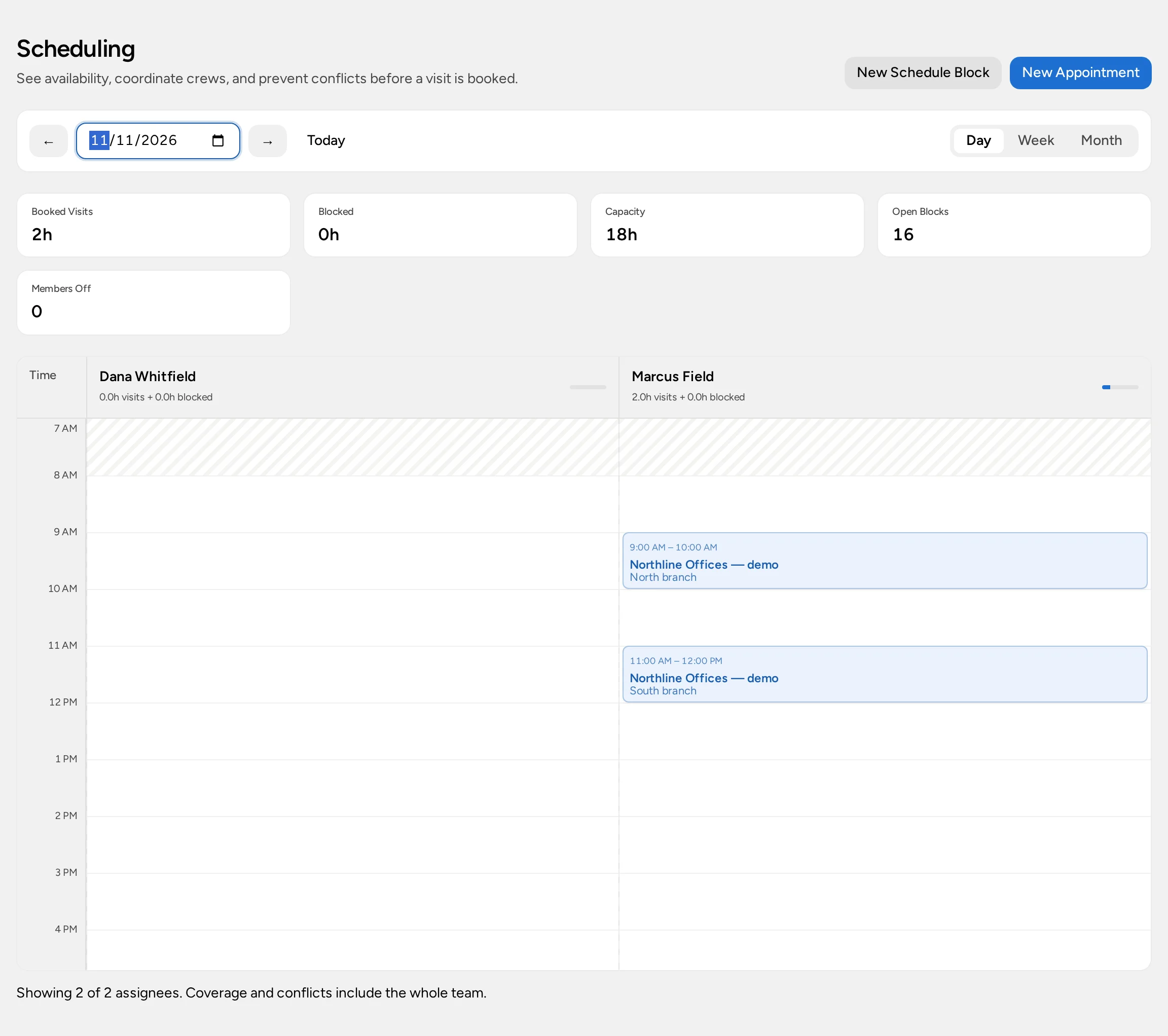
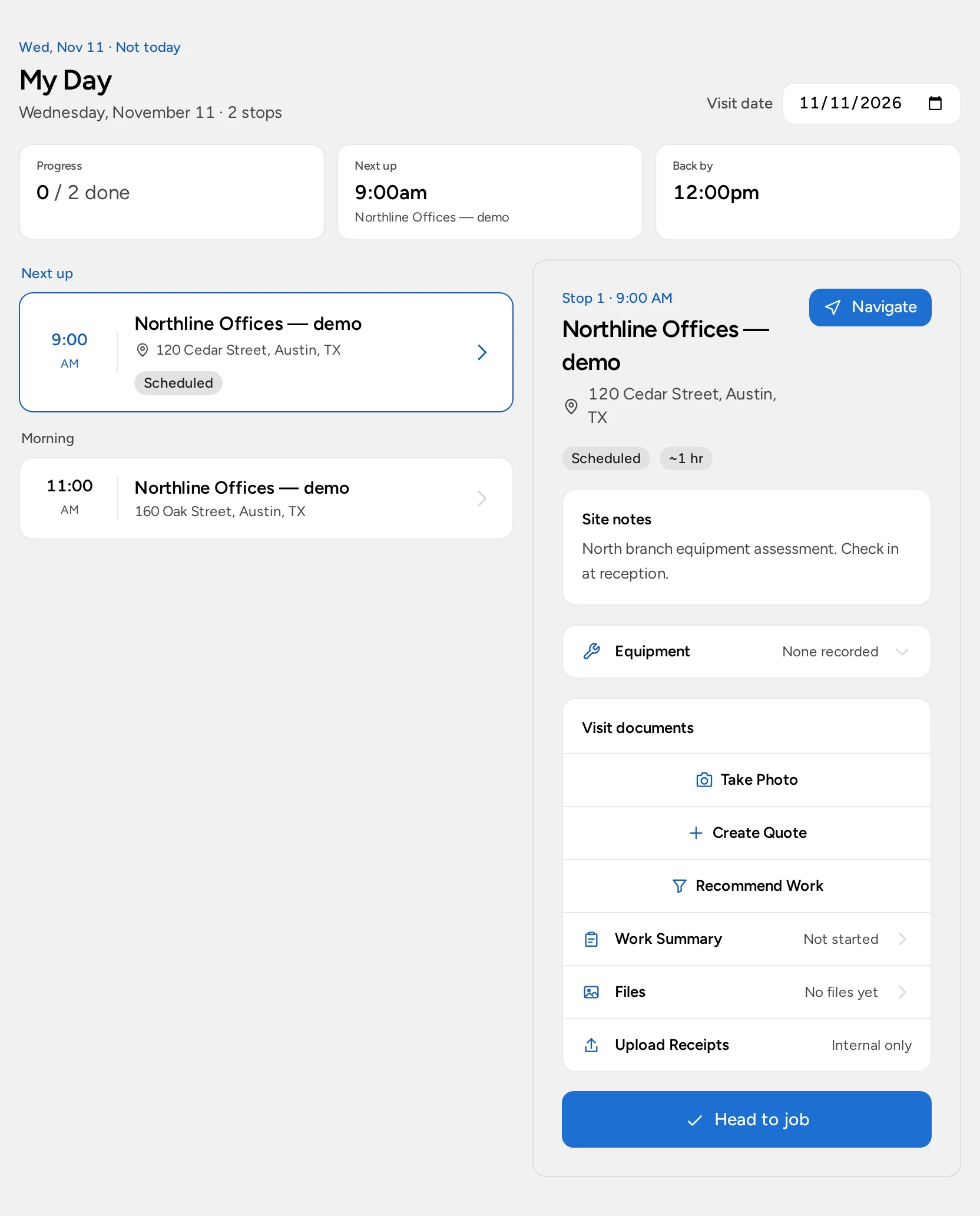
A person planning only their own time can use My Schedule for calls and estimates. A personal block is not a dispatchable site visit. With the add-on enabled, an organization using the Field Service experience can have an authorized dispatcher book at a service location and assign an eligible technician, who sees the stop in My Day. Permissions and the selected experience determine which views are available. See choose the scheduling experience.
Field Service is an optional $20/month add-on per organization on Basic or Pro. The no-card Pro trial can include Field Service. Enterprise is custom-scoped: confirm Field Service in your agreement. Your organization must select that scheduling experience, and each person's role still controls access. Compare plans.
For a service call at a branch, confirm the correct location before booking. If inspection leads to a later installation, arrange and schedule the return visit deliberately rather than assuming the first visit or an approved quote created it. Verify site access and any customer notification separately.
Keep branch decisions with the branch
After a technician inspects a unit, the office needs a clear next action: is a quote waiting on the customer’s approver, is another site visit required, or is the job ready to bill? Update the lead’s follow-up rather than assuming an appointment status carries those decisions. If a part or site access changes the plan, confirm it through the appropriate contact and schedule a new visit explicitly once the time and assignee are known. Opsentric does not receive equipment alerts or automatically book preventive visits. For an agreed maintenance cadence, organizations with Field Service can use Service Plans to hold the customer, site, frequency, and price. Invoice-management access is required to create or edit a plan; schedule-management access can view it. Needs Scheduling helps identify plans needing a booking, but someone must still use Schedule Visit with active Field Service and scheduling access. The plan tracks service visits owed, separately from booked appointments. Follow the service-plan guide to define, book, complete, or skip each visit. Invoices are created and reviewed separately; a plan does not charge the customer’s card automatically.
Before the assigned worker leaves for a return call, have them check the branch address and site notes in My Day. The dispatcher can compare that stop against the team board in Scheduling. If the north and south sites have similar names, verify the service location on the visit instead of relying on a customer name alone.
Turn a diagnosis into an agreed bill
After inspection, prepare a proposal if the customer is comparing repair and replacement options, or create a quote for the agreed work. Review the billing contact, location, line items, approval requirement, and due date before issuing the invoice. Completing the visit doesn’t send or settle it.
To collect online card payments, connect the organization’s Stripe account under Administration → Payments, complete provider onboarding, and save an active income category. This is not the Stripe checkout used for the Opsentric subscription. On an eligible invoice, Stripe Checkout lets the customer enter payment details with the provider; check the confirmed payment and remaining balance before recording anything else. Follow the payment setup guide.
Bring branch purchases into the financial record
A supplier’s part and a technician’s travel purchase are costs to your organization, even if the customer is billed later. Opsentric can keep those expense transactions and receipts alongside outstanding invoices, but it doesn’t automatically attribute a purchase to a branch visit or calculate equipment-service margins.
After buying a part, open Receipts → Upload Receipts. A field worker can save the file with upload access while finance remains restricted. A finance manager opens Needs Review and chooses All to see the team’s uploads, checks vendor, date, amount, and expense category, then attaches the receipt to a transaction already in Ledger or chooses Create Expense when none exists. A receipt on its own isn’t a recorded cost; avoid making a second expense for a purchase already entered. See upload receipts and record expenses.
Reconcile these purchases with supplier statements and review unpaid customer invoices separately. When an invoice payment is confirmed through online checkout, Opsentric creates linked income in the selected category; don’t enter that same amount again as manual income. Daily business routines helps divide these checks between the office and finance manager.
Keep the technical history separate
- Add a fictional business customer and two branch service locations. Check which address receives the bill and which addresses workers visit.
- Capture separate leads for a reported breakdown and a replacement discussion, each with a callback and person responsible for the next decision.
- Book and assign a diagnostic visit at the correct branch if you use Field Service. Have the technician confirm the address in My Day.
- Prepare a quote from the agreed findings, check the site and invoice terms, then issue and send the document as its own step. Schedule a return visit only when approved and actually needed.
- Upload a fictional parts receipt; have finance attach it to an existing expense or create one after checking the supplier total.
- Review open leads, unreviewed receipts, pending site decisions, and unpaid invoices using the daily routine guide.
Keep unit identifiers and photos in site equipment records, and track agreed maintenance visits with Service Plans. Preserve specialist inspection histories, safety procedures, warranty documentation, and service-level obligations in the systems and agreements your work requires. Equipment notes are not a compliance or telemetry system.