
Set Up Landscaping Scheduling and Billing
Keep the property, the agreed scope, and the crew's next visit aligned as the season changes.
Published
On this page
A spring cleanup at one property and a patio estimate at another need different information before you send a crew. Materials, fuel, and equipment costs must also make it from the field into the business records. A property owner may also have a home address and a separate site where the work happens. Opsentric can keep the customer, follow-up, visit, and invoice together; it does not design a landscape, forecast weather, or automatically schedule a season’s worth of jobs.
Where landscaping work gets difficult to coordinate
- A cleanup and a construction estimate compete for attention. Separate leads keep the next callback and scope decision visible, even when the same property manager requested both. A proposal can present the choices after your site walk.
- Weather changes the plan for a staffed visit. The dispatcher can review and change the booking while assigned workers check their stops in My Day. You still need to confirm the revised arrangements with the customer; Opsentric does not forecast the weather.
- Materials are purchased before the project is billed. Receipt review brings mulch, fuel, and equipment-hire costs into the ledger. Review those expenses alongside invoice balances rather than assuming a busy crew means paid work.
Set up your organization before the season starts
- Check the business and financial defaults. Add your business name and contact information, then review country and Time zone. Appointment times follow the organization, not each worker’s phone. Confirm Organization currency, Starting number, and Padding width before creating the workspace; currency and invoice-numbering choices are permanent.
- Plan access around the crew’s work. Use Self Scheduling for personal blocks, or Basic or Pro with the Field Service add-on for assigned customer-site visits. Decide who can schedule crews, issue invoices, upload materials receipts, and review expenses. The first-workday checklist helps separate those responsibilities.
- Connect Stripe for customer credit card payments. After organization creation, someone with settings-management access opens Administration → Payments and chooses Connect With Stripe when offered. Complete provider onboarding, check Accept customer payments and Receive bank payouts separately, select an active Online payment income category, and choose Save Income Category. Paying your Opsentric subscription does not enable customer checkout. Follow the Stripe setup guide before offering a card option for a cleanup invoice or eligible project deposit.
Give each property the right context
Create the property owner or manager in Customers and search before adding a duplicate. If a manager calls about several addresses, add the work sites as service locations under that customer when Field Service is available to your role. Confirm gates, parking, and access directly. See create a customer and service location.
Use a Lead for a distinct opportunity: a one-off tree-bed refresh, for example, separate from ongoing mowing discussions. Record approximate scope and a date to follow up after your site walk. A lead’s expected value isn’t revenue, and the follow-up does not reserve time on a crew’s calendar. Learn the lead workflow.
For a cleanup inquiry, write down which beds, paths, or debris the customer means, not just “yard work.” For a patio estimate, note that measurements and material choices are still outstanding. Use the lead’s follow-up to get that information after a walk-through. A quoted project and a routine mowing discussion can belong to the same customer without becoming the same lead or invoice.
If a property manager calls about two sites, check which one has restricted access and which one receives the bill. Customer mailing and billing addresses are not automatically service locations. That distinction matters when a crew is sent to a property that the manager doesn’t occupy.
Book the walk-through before the work
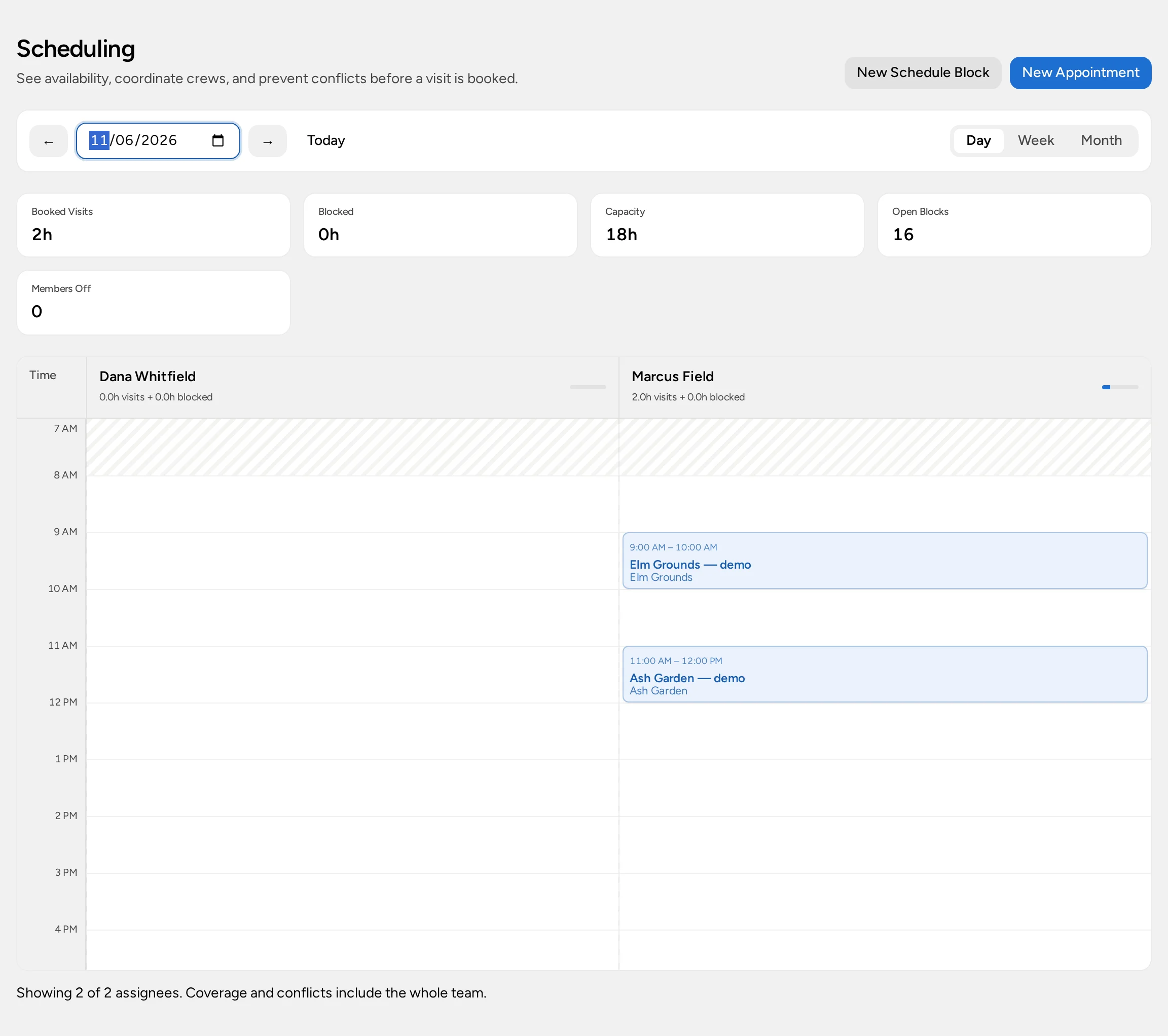
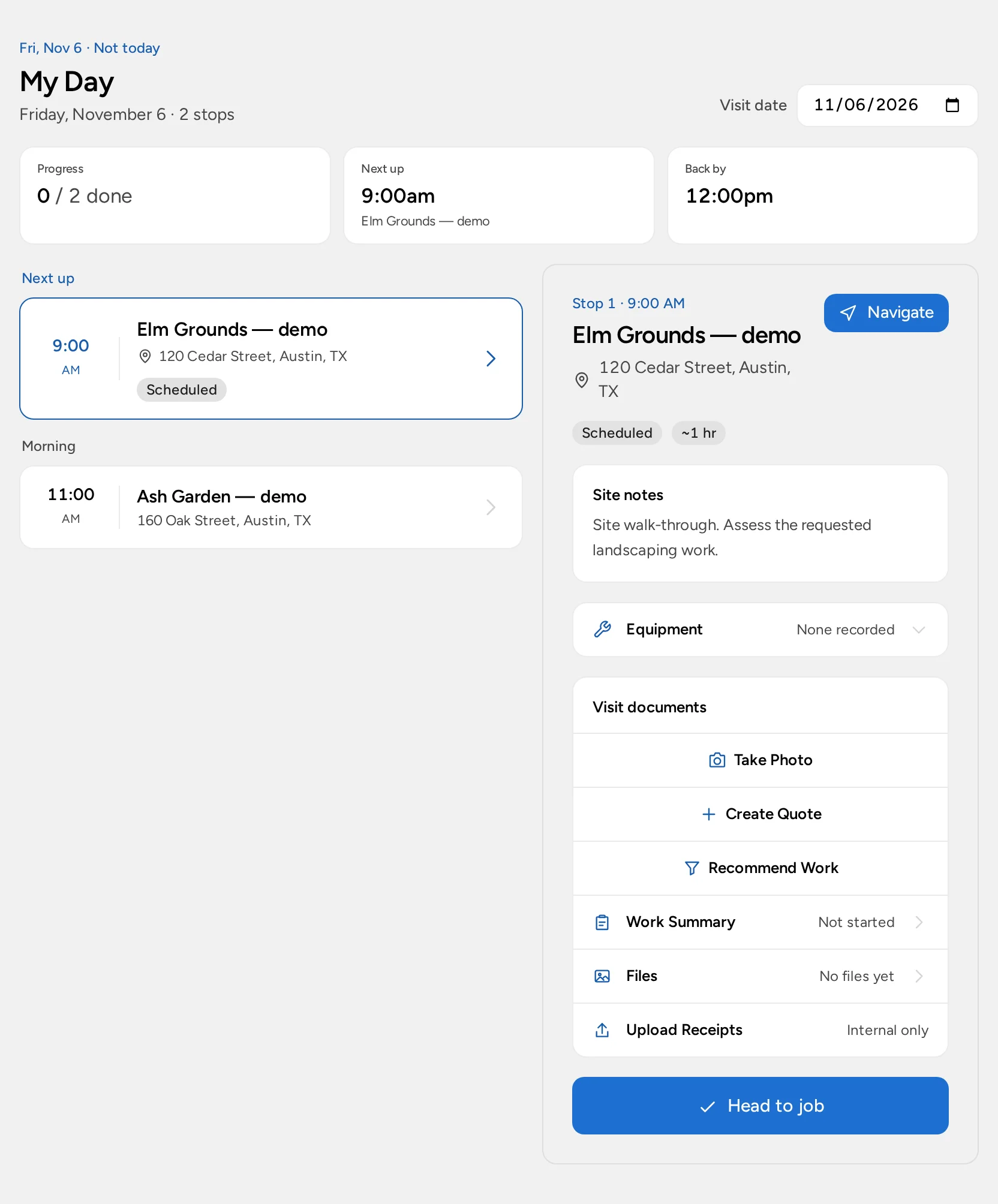
My Schedule works for a solo owner’s estimate preparation or personal site-walk time, but its blocks are not dispatchable visits. If you send crews to properties, Basic or Pro offers the Field Service add-on: a scheduler with the right access books visits at the correct location and assigns workers. They see assigned visits in My Day when the organization has selected that scheduling experience. Compare scheduling experiences before choosing one.
Field Service is an optional $20/month add-on per organization on Basic or Pro. The no-card Pro trial can include Field Service. Enterprise is custom-scoped: confirm Field Service in your agreement. Your organization must select that scheduling experience, and each person's role still controls access. Compare plans.
For a patio estimate, book the assessment, measure the site through your own process, and only then quote materials and labor. For routine maintenance, explicitly schedule each intended crew visit; this article does not promise automatic recurrence. Recheck timing when weather or access changes, and contact the customer yourself about revised plans.
Keep weather changes and return work visible
An estimate visit can happen even if the eventual crew work is weeks away. Keep the site walk and the scheduled cleanup as separate records, with the actual assignees on the work visit. If rain or unavailable access changes the plan, review the booking with the dispatcher and confirm the new time with the customer. Don’t assume a changed appointment has sent a notification; the scheduling guide explains the views, not an automatic communication guarantee.
For a customer asking for ongoing lawn work, agree on the next date and scope first. With Field Service available, someone with invoice-management access can create a Service Plan for the customer and property, recording the agreed frequency and price. Staff with invoice- or schedule-management access can review Service Plans and Needs Scheduling. With active Field Service and scheduling access, use Schedule Visit to book the next staffed visit. A fixed-schedule plan generates the service windows owed for the agreed season, not booked appointments. Use the service-plan guide to book each visit, or explicitly skip service no longer owed. The plan does not automatically charge a card. Leave material orders and planting specifications in the process you use to manage them, and make sure the invoice reflects what was agreed rather than every idea discussed during the walk-through.
Quote seasonal choices and collect separately
A proposal can present alternative scopes, such as cleanup alone versus cleanup plus planting. After the customer chooses, build or prepare the quote and review the invoice before issuing it. A completed site visit does not email an invoice or move money.
If you want customers to pay by card online, connect your organization’s Stripe account at Administration → Payments and save an active income category after the provider has enabled acceptance. Paying for an Opsentric plan is a different Stripe flow. An eligible invoice can then offer Stripe Checkout through the provider; wait for confirmed payment before updating your records manually. Follow connect online payments for the setup.
Track materials without mistaking cost for revenue
A load of mulch bought for a cleanup is an expense, while the amount on the customer quote is an agreed charge. Opsentric keeps those records in the ledger and invoices, respectively, but does not automatically attribute mulch, fuel, or equipment hire to an individual property or show a job-level margin.
Have the person who bought supplies open Receipts → Upload Receipts if their role allows it. A receipt uploader doesn’t need access to the team’s finance records. Someone who manages finance reviews Needs Review for the organization, checks vendor, date, amount, and category, and attaches the receipt to a purchase already recorded in Ledger or uses Create Expense when none exists. An AI suggestion isn’t a saved expense, and two photos of one purchase shouldn’t become two transactions. The receipt guide shows the review path.
Compare recorded purchases with statements at week’s end and check unpaid invoices separately. An invoice payment confirmed online already creates linked income; don’t log it again just because the customer’s payment has arrived in the bank. Use daily business routines for that review.
Keep a practical first-week list
- Add a fictional property manager with two service addresses and confirm which site needs the cleanup. Keep the billing contact on the customer record.
- Capture a separate lead for a patio estimate. Set a follow-up after the site walk instead of treating the expected value as a sale.
- Book the walk-through and, once agreed, an assigned crew visit if your organization uses Field Service. Check the worker’s My Day against the dispatcher board.
- Compare the scope options in a proposal or save a quote, then review the location, tax, and total before issuing the invoice.
- Upload a fictional materials receipt; have the finance owner attach it to an existing expense or create one after checking the total.
- At week’s end, look for leads waiting on a decision, receipts needing review, visits that need a confirmed time, and invoices with balances. Daily business routines can help assign those reviews.
Maintain planting plans, material orders, pesticide or tree-work requirements, and safety procedures outside this customer-coordination workflow as needed.