
Set Up Plumbing Scheduling and Billing
Keep the call, the service address, the assigned plumber, and the bill connected without treating them as one automatic step.
Published
On this page
A burst pipe and a planned fixture replacement shouldn’t enter your day in exactly the same way. Nor should receipts for fittings and emergency supplies disappear between the van and the books. One needs a fast callback and a confirmed address; the other may need a site check before anyone can price the parts and labor. Opsentric can organize those handoffs, but it doesn’t diagnose leaks, dispatch a crew automatically, or replace plumbing licensing and permit processes.
Where plumbing work slips between the call and the bill
- An urgent callback interrupts a planned estimate. Separate leads and follow-up dates keep the leak request visible without losing the water-heater discussion. A lead records the next contact; the dispatcher still decides who can attend.
- The payer’s address is not the leaking property’s address. Customer and service-location records distinguish the property manager from the work site. An assigned visit gives the plumber the location to check before setting off.
- The first trip does not finish the job. Book a return visit after scope, parts, and approval are confirmed, then review the invoice independently. A completed assessment is neither a booked installation nor money collected.
Set up your organization before the first busy day
- Check business details and invoice defaults. Enter the business name, contact details, country, and Time zone used for your service area. Review Organization currency, Starting number, and Padding width before creating the workspace: currency and invoice-numbering settings are permanent. If you already invoice elsewhere, agree the starting number with whoever keeps your books.
- Decide who owns callbacks, dispatch, and billing. Self Scheduling provides personal blocks; Basic or Pro with the Field Service add-on supports assigned visits at customer addresses. Give the office and plumbers the access needed for their tasks, with receipt review assigned to someone who manages finance. Use the first-workday checklist to check that division.
- Connect Stripe for customer credit card payments. After workspace creation, someone with settings-management access opens Administration → Payments and selects Connect With Stripe when available. Complete provider onboarding, check Accept customer payments and Receive bank payouts separately, choose an active Online payment income category, and select Save Income Category. The card used to pay Opsentric does not enable customer payments. Follow the Stripe setup guide before offering card checkout at the end of a repair.
Record what the caller knows
Create the person or property manager in Customers and check whether the job address differs from the billing address. For a manager with several buildings, keep the sites attached to that customer’s record rather than opening a new customer for each one. The customer and service location guide explains when a work site is available and who can add it.
Create a Lead for the specific request. Note whether water is shut off, where the issue was observed, and when you promised to call back. A follow-up on the lead is a reminder to contact the customer, not a booked visit. For a planned water-heater replacement, keep measurements and model details in the notes you review before preparing a price. See manage leads and follow-ups.
Before anyone quotes a repair, separate what the caller reported from what a plumber has verified. “Water under the sink” is useful intake; it does not tell you whether the fixture, supply line, or another source needs work. Record the contact method the customer prefers and set the next follow-up date in Leads. If the caller is a tenant but the property manager authorizes and pays for repairs, confirm who should be the customer on the record and who needs a separate call. Don’t put an unverified repair price in an invoice just to reserve the opportunity.
Book the right kind of time
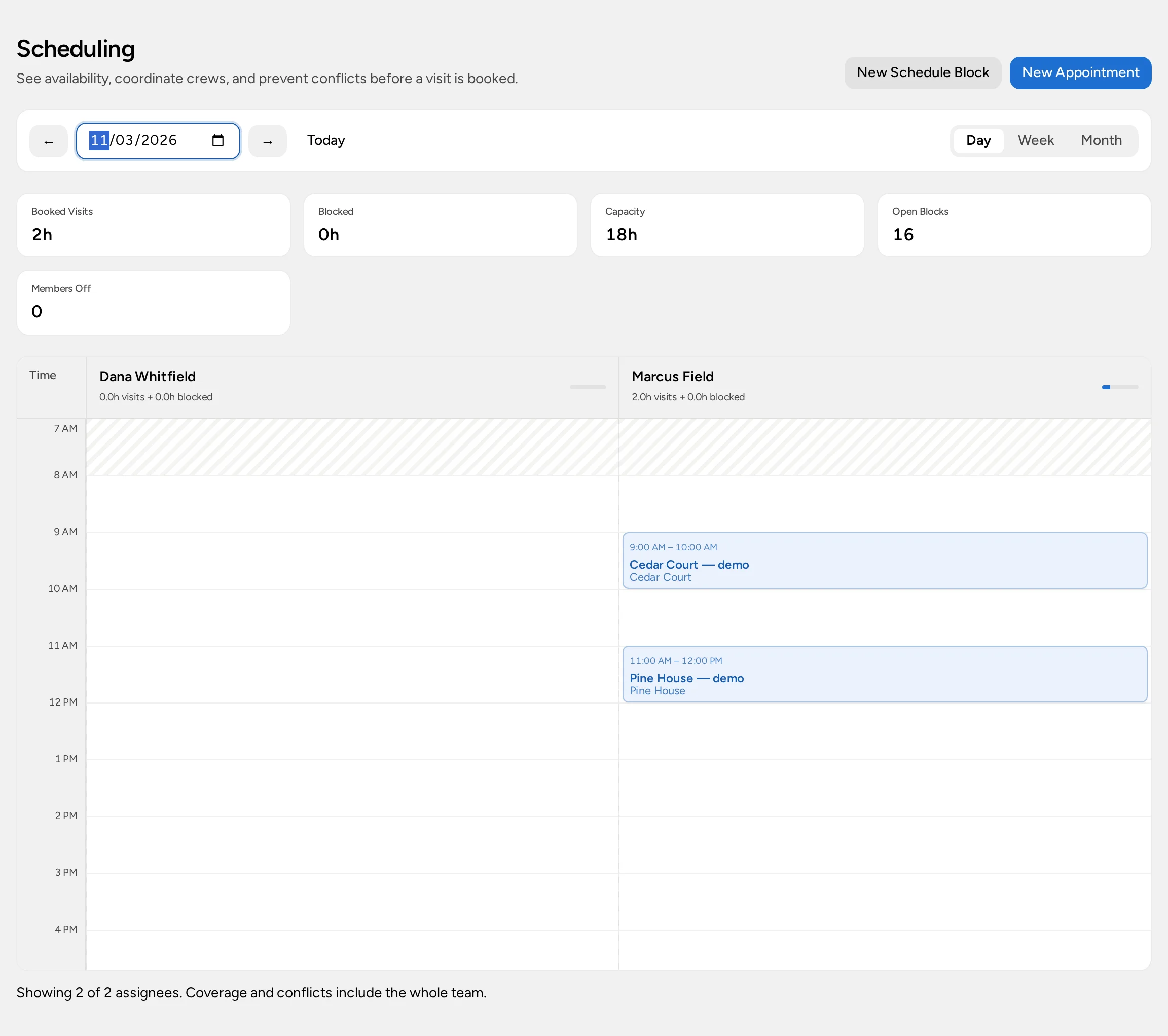
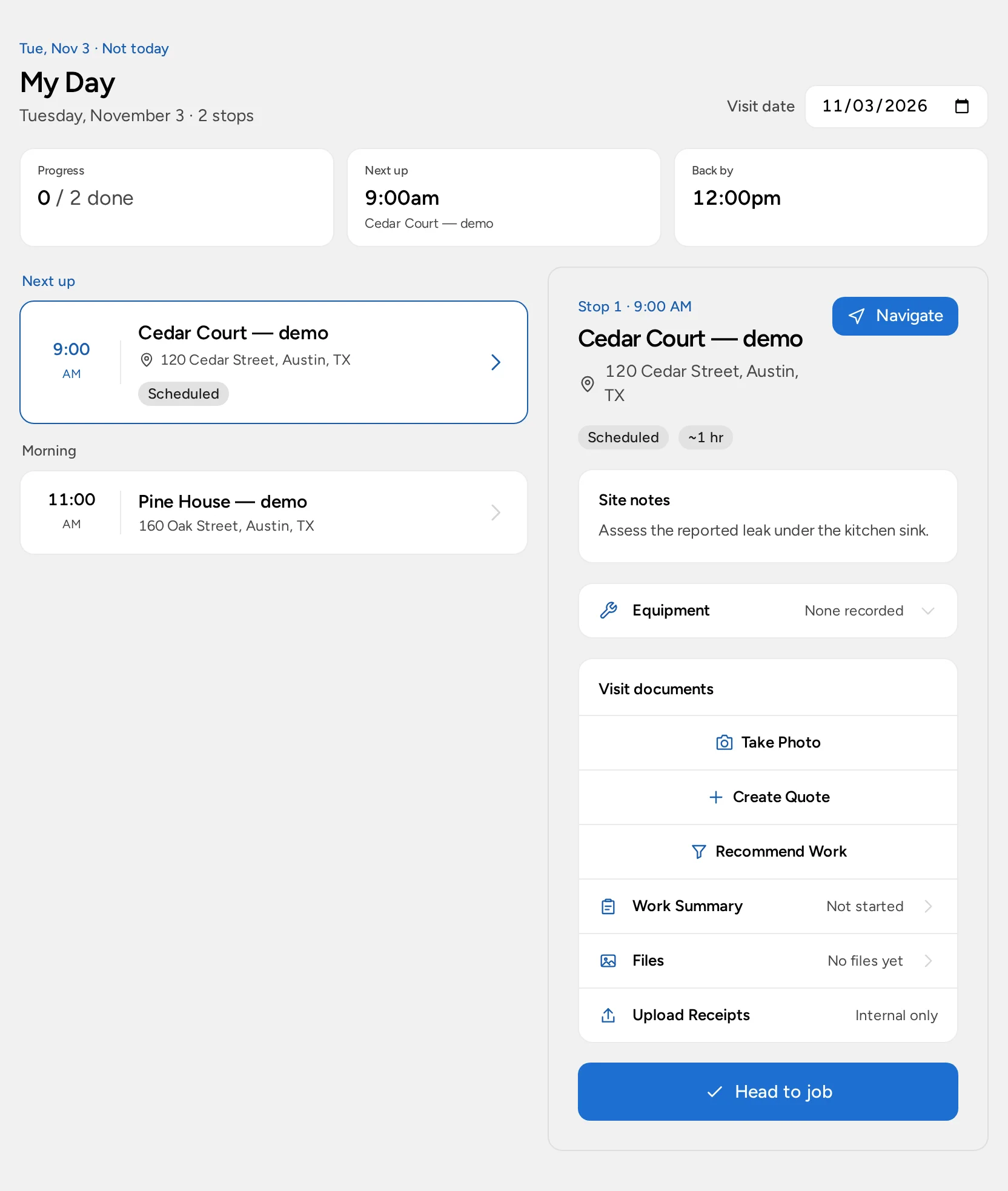
Use My Schedule to reserve your own time for calls and estimating when your organization uses Self Scheduling. A personal block doesn’t put a plumber at a customer’s address. For a crew doing site work, Basic or Pro offers the Field Service add-on: a dispatcher can book a visit at a service location and assign eligible people; the assignee checks it in My Day. Your organization must choose the Field Service experience and each person needs the appropriate access. Compare the scheduling views before choosing.
Field Service is an optional $20/month add-on per organization on Basic or Pro. The no-card Pro trial can include Field Service. Enterprise is custom-scoped: confirm Field Service in your agreement. Your organization must select that scheduling experience, and each person's role still controls access. Compare plans.
For an urgent leak, confirm access and arrival arrangements directly with the customer. Saving a visit isn’t a promise that a customer email was sent. For a multi-unit building, check the unit and site notes before selecting the location; a correct billing contact can still point to the wrong door.
Keep the diagnosis and return visit separate
Suppose the first visit finds that a heater needs replacing rather than a small repair. The first appointment still represents the inspection that actually happened. Note the findings and the next agreed action, then follow up with the person authorized to approve the work. If parts or access are not confirmed, leave the return date open rather than booking a crew on an assumption. When the job is agreed, book a second Field Service visit at the same customer site and check its assignee in Scheduling. The worker can then see that distinct stop in My Day.
For a property manager’s second address, inspect the service location again before saving either visit. A lead belongs to a customer; it does not guarantee that the location attached to a visit or quote is the one the caller meant. Review the location steps if the site is missing, and ask a scheduler to check access if you cannot add it yourself.
Quote repairs and track the actual payment
When the scope is clear, prepare a proposal with options for alternatives such as repair versus replacement, or create a quote directly. Issue the invoice separately when the agreed work is ready to bill. Completing the visit doesn’t issue it or collect money. Follow the invoice guide to check approval, deposit terms, and the remaining balance.
To take a customer’s card through Opsentric, an administrator first connects the organization’s Stripe account under Administration → Payments, completes provider onboarding, and saves an active income category. That is separate from paying for an Opsentric subscription. Staff can then offer Stripe Checkout on an eligible invoice or share its private customer link. Card details go to the provider; Card (non-Stripe terminal) merely records a payment taken elsewhere. See connect online payments before offering checkout.
Account for fittings, fuel, and other purchases
Parts bought for a call and money charged to the customer are different sides of the business. Keep the supplier receipt even if the repair isn’t invoiced yet. Opsentric can organize expenses in the ledger and customer payments against invoices, but it does not automatically allocate a fitting purchase to a plumbing visit or calculate a job’s margin.
Open Receipts → Upload Receipts after a purchase. A plumber with upload access can save the file without seeing the finance ledger. Someone with finance-management access reviews Needs Review across the team, verifies vendor, purchase date, total, and category, then either attaches the receipt to an already recorded expense or selects Create Expense. Upload alone is not an expense, and creating an expense twice overstates the cost. Follow upload receipts and record expenses for the full review.
At week’s end, compare purchases with supplier statements and look at unpaid invoices separately. Provider-confirmed invoice payments create linked income; don’t make another manual income entry for the same payment. Use the daily routine guide to assign that review to someone with finance access.
Run a small test before the first busy day
- Add a fictional customer with a billing address and a different work site. Check that the right service location appears under that customer.
- Capture a reported leak as a lead, with the symptom and a specific callback. Check that the follow-up is visible before ending the call.
- If you use Field Service, book and assign an inspection at the work site; have the assigned worker open the correct date in My Day. On Self Scheduling, reserve your own callback time instead and don’t call it a booked plumber visit.
- After the assessment, prepare a repair or replacement quote with the actual agreed scope. Issue and send the invoice separately; check its status before saying the customer has received it.
- Upload a fictional fittings receipt and have the finance manager attach it to the right expense or create the expense once.
- Review open leads, receipts still needing review, and unpaid invoices at week’s end using the daily routine guide. Confirm any payment with the provider or your own records before entering it again.
Keep backflow documentation, inspection reports, emergency response policies, and permit records in the appropriate trade processes. This customer-and-billing workflow does not replace them.