
Set Up Handyman Scheduling and Billing
Keep different small-job requests organized without turning every message into a promised visit.
Published
On this page
A property manager might ask you to fix a door at one unit and inspect damaged trim at another. Small material and travel purchases need recording too, or they disappear behind the customer bill. Those requests may have one billing contact but two work sites and different scopes. Opsentric can help you separate the records and follow-ups. It does not determine whether work requires a licensed trade or a permit.
Where small jobs become hard to track
- One message contains work at two properties. Separate leads under the same customer keep the door repair and trim estimate visible. Service locations help the assigned worker reach the right unit without duplicating the manager’s account.
- A quick repair grows after inspection. Proposals or quotes make the revised scope explicit before another trip is booked. The customer’s decision, the visit, and the invoice remain separate things to check.
- Small purchases never reach the books. Upload hardware receipts while the purchase is fresh, then have finance attach each to an existing expense or create one. That gives the office something concrete to reconcile rather than a pile of loose receipts.
Set up your organization before accepting jobs
- Review the details customers will see. Add your business name, contact information, country, and Time zone during setup. Choose Organization currency, Starting number, and Padding width carefully; currency and invoice numbering are permanent after organization creation. Your business address is not a substitute for the customer’s work site.
- Choose personal planning or assigned site visits. Self Scheduling suits personal blocks; Basic or Pro with the Field Service add-on supports dispatch to customer properties. Decide who handles quotes, scheduling, and receipt review, even if you do all three yourself. The first-workday checklist explains the access split before you invite help.
- Connect Stripe to take customer credit card payments. After creating the workspace, a user with settings-management access opens Administration → Payments and selects Connect With Stripe when available. Complete provider onboarding, check Accept customer payments and Receive bank payouts separately, select an active Online payment income category, and choose Save Income Category. This does not happen when you pay for Opsentric. Follow the Stripe setup guide before promising that a property manager can pay an invoice by card.
Keep each request tied to the right property
Add the manager or homeowner in Customers and search before creating another record. For a manager’s multiple addresses, attach each work site as a service location when Field Service and your role permit it. Check access with the contact rather than assuming their office address is the job site. See the customer and location guide.
Create a Lead for work that needs a response or estimate. Record whether a door repair can be assessed from the information provided or needs a visit, and set a follow-up date. A separate trim job can have its own lead so neither disappears when one is won or lost. Manage leads explains the statuses; a lead’s follow-up isn’t a booking.
Before quoting, note what the customer actually wants done and what needs a site look. A door that sticks may need a different scope from a replacement request; a damaged trim photo doesn’t tell you what lies underneath. Keep the door and trim requests separate so you can follow up with the manager on each decision. Don’t place lock codes, tenant contact information, or other sensitive details in general notes without a deliberate access process.
If you cannot see Service Locations or Add Site, the customer guide explains the Field Service and scheduling-access requirements. A person who can edit customer contact information does not necessarily have permission to manage site records. Ask the scheduler to verify the right property rather than making another customer to work around the missing control.
Schedule the assessment and work separately
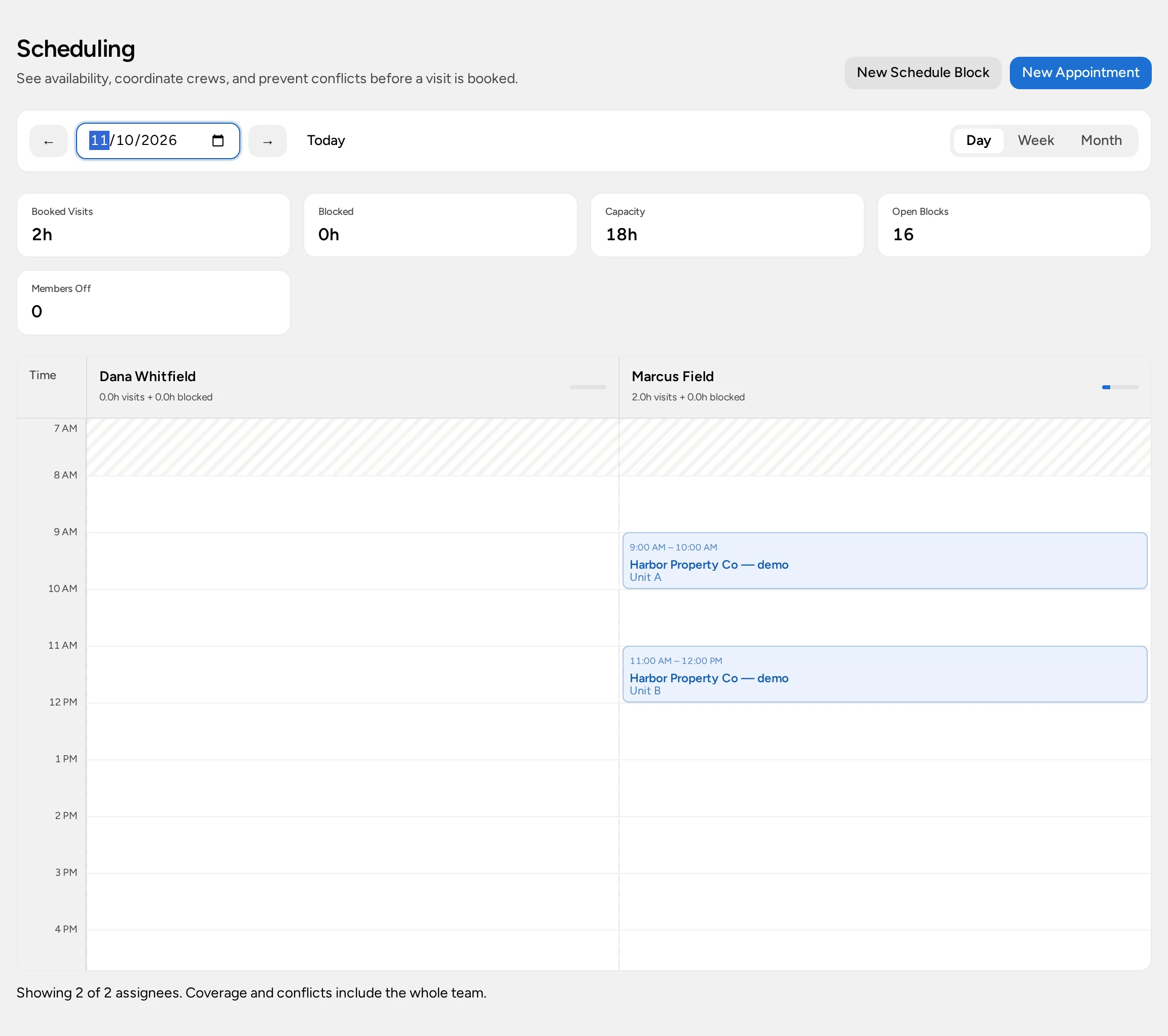
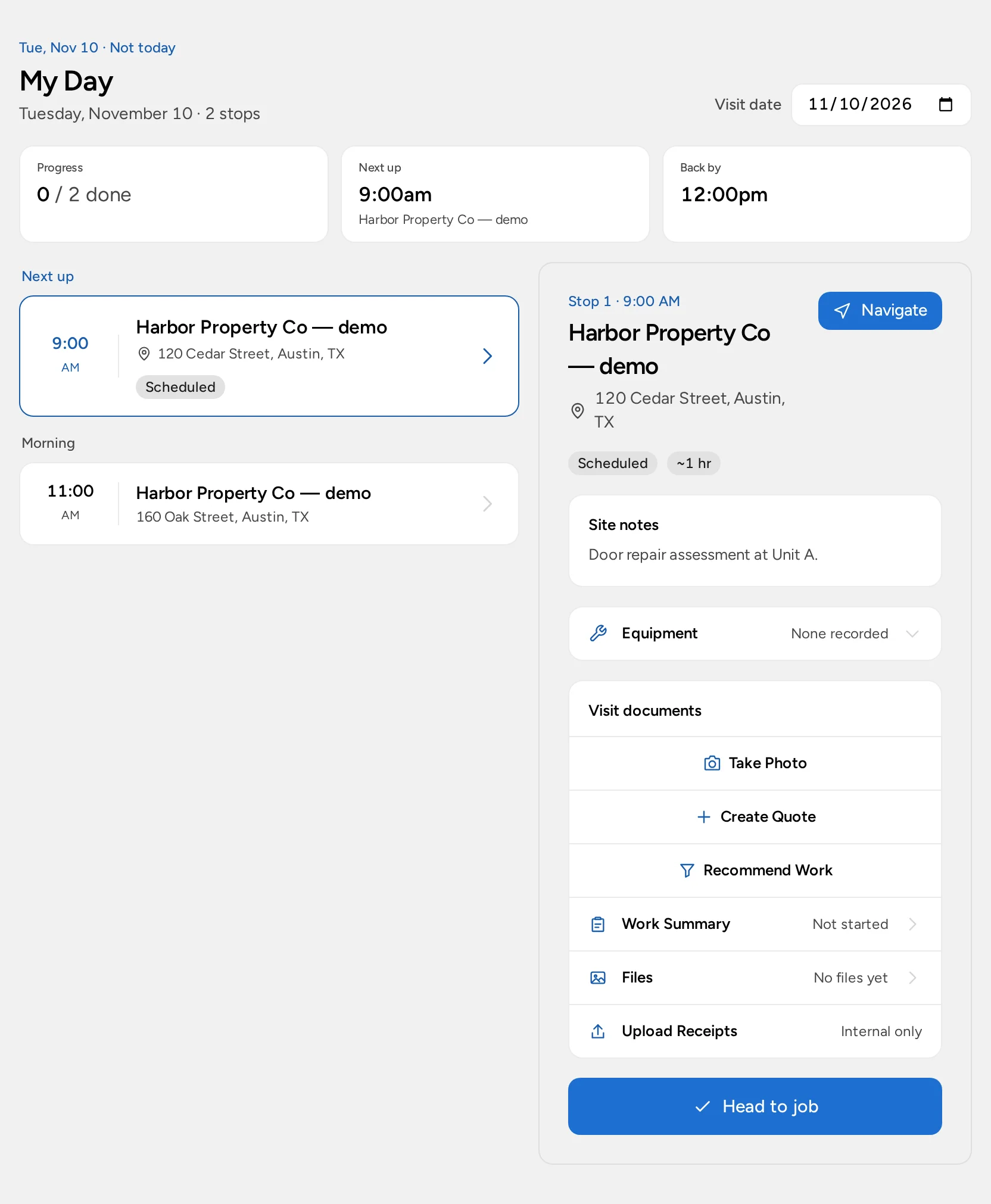
A solo operator can reserve personal estimate time in My Schedule under Self Scheduling. These blocks may refer to a customer, but they don’t assign a crew or hold a service location. With the add-on enabled and the active Field Service experience, a dispatcher with schedule access can book visits at customer sites and assign workers; the assignee checks My Day. See how the scheduling views differ.
Field Service is an optional $20/month add-on per organization on Basic or Pro. The no-card Pro trial can include Field Service. Enterprise is custom-scoped: confirm Field Service in your agreement. Your organization must select that scheduling experience, and each person's role still controls access. Compare plans.
For a repair that grows after inspection, confirm the new scope and quote it before committing a second visit. Schedule that visit explicitly. A saved appointment doesn’t mean a customer was emailed, and a technician completing the first stop doesn’t automatically create the next one.
Keep site changes and approvals straight
An inspection may change what is practical. If the manager asked for a quick patch but the damaged area needs more work, explain the new scope before sending a quote or adding a return visit. The first visit still belongs to the original address. If you need another trip, select that location again and assign the right worker; don’t assume that completing the first appointment makes a second one.
A manager might approve work at one property but defer the other. Keep the leads and their follow-ups distinct, and check each quote’s customer and site. Approval of a proposal option is not invoice approval or payment. If a task may require a licensed specialist or a permit, route that decision through the people and processes responsible for it rather than using an Opsentric status as authorization.
Present scope choices and invoice the work
Use a proposal if the customer must choose between patching and replacing damaged trim. For a straightforward job, create a quote directly and check the line items before issuing the invoice. Record payment only when it has actually arrived; don’t equate a completed visit with a paid bill.
To accept a card online, someone with settings access connects the organization’s Stripe account in Administration → Payments, completes provider onboarding, and saves an active income category. It is separate from your Opsentric subscription. Offer Stripe Checkout only on an eligible invoice, or share its private customer link. Card (non-Stripe terminal) records a charge already taken on your terminal; the payment guide explains the difference.
Don’t let small purchases disappear
A box of fasteners, a replacement hinge, and fuel are expenses to the business, even if the customer later pays a quoted materials line. Opsentric keeps purchases in Ledger and customer payments on invoices; it does not automatically allocate each purchase to a property or calculate margin for a handyman visit.
After buying supplies, upload the receipt in Receipts if you have upload access. A worker who can upload may not be able to review everyone’s finance records. Someone with finance-management access checks Needs Review across the team, compares vendor, date, amount, and category with the file, and attaches it to an existing expense or selects Create Expense if it hasn’t been recorded. Upload alone is not an expense, and two receipts for the same purchase should not produce two ledger entries. Use the receipt guide for the exact review steps.
Before closing the week, compare these expenses with your purchase records and review customer invoices that still have balances. If checkout has already confirmed an invoice payment, Opsentric records linked income; don’t enter the same payment again when reconciling the bank.
Try two jobs for one customer
- Add a fictional property manager with two work sites. Check that the billing contact stays with the customer while the site addresses stay distinct.
- Open one lead for a door repair and another for trim work, with separate follow-ups and reported details.
- In Field Service, book an assigned assessment at the correct unit; have the worker check My Day. In Self Scheduling, use a personal time block only for your own estimate work.
- Prepare a quote or proposal for the scope actually approved at each property. Issue and send the invoice separately; don’t infer payment from the completed visit.
- Upload a fictional hardware receipt and have the finance owner attach it to an existing expense or create one after review.
- Review open leads, receipts needing review, visits needing another decision, and unpaid invoices with the daily routine guide.
Keep required licenses, permits, safety records, subcontractor arrangements, and materials purchasing in their appropriate systems.