
Set Up Electrical Service Scheduling and Billing
A workable path from the first service request to a scheduled site visit and a reviewed invoice.
Published
On this page
An outlet that has stopped working and a whole-panel upgrade call for different kinds of follow-up. Supplier purchases and crew expenses also need recording before you can see what the business spent. Before assigning someone, you need the customer’s details, the work address, and enough context to decide whether a site assessment is needed. Opsentric tracks that business workflow; it doesn’t assess electrical safety or authorize regulated work.
Where electrical jobs need clearer handoffs
- A small service call gets buried behind a larger estimate. Separate leads and follow-ups keep the outlet callback visible while a panel upgrade waits for assessment. Neither record substitutes for your professional safety process.
- An assessment is mistaken for an installation booking. Field Service separates assigned visits at the correct building. The office books the later work deliberately rather than relying on an estimate or customer decision to populate the calendar.
- Materials leave the supplier before money arrives from the customer. Receipts and expense review record the purchase, while the invoice tracks what is owed. Keep the two visible without entering the same payment or expense twice.
Set up your organization before booking assessments
- Review business and invoice defaults. Enter the business name, contact details, country, and Time zone used for customer work. Confirm Organization currency, Starting number, and Padding width before creating the organization: currency and invoice-numbering settings are permanent. If you are moving from another system, decide the starting number with whoever maintains your books.
- Separate office, field, and finance access. Choose Basic or Pro with the Field Service add-on if you need to dispatch electricians to buildings; Self Scheduling provides personal blocks instead. Decide who schedules assessments, sends invoices, and reviews supplier receipts. Use the first-workday checklist to check responsibilities rather than assuming a job title grants access.
- Enable Stripe customer credit card payments. After workspace creation, someone who manages settings opens Administration → Payments and selects Connect With Stripe when available. Complete provider onboarding, check Accept customer payments and Receive bank payouts separately, choose an active Online payment income category, and select Save Income Category. Subscription billing does not set up your merchant account. Follow the Stripe connection guide before offering card checkout on a service invoice or eligible deposit.
Separate the customer from the job
Add the owner or facilities contact in Customers. Where a property manager handles several buildings, confirm which property needs the work and, if your organization uses Field Service, add the service location under the customer. The billing address need not be the work site. Use the customer guide for the address and service-location steps.
Create a Lead for each distinct opportunity. For a panel replacement, note the requested assessment, the customer’s reported capacity concerns, and the next contact date. For a service call, record what was reported without treating the lead note as a diagnosis. The lead guide shows how to assign follow-up; a lead’s estimated value is not an invoice or a payment.
A facilities manager might request an estimate for lighting at one building while also reporting a failed outlet at another. Keep those as separate leads under the right customer. Record the building, the reported symptom, and the person who can approve a site assessment. Put a follow-up on each lead so the urgent callback is not hidden behind a longer project estimate. The next follow-up is a contact commitment, not a safety assessment or a crew booking.
Schedule the assessment and the work deliberately
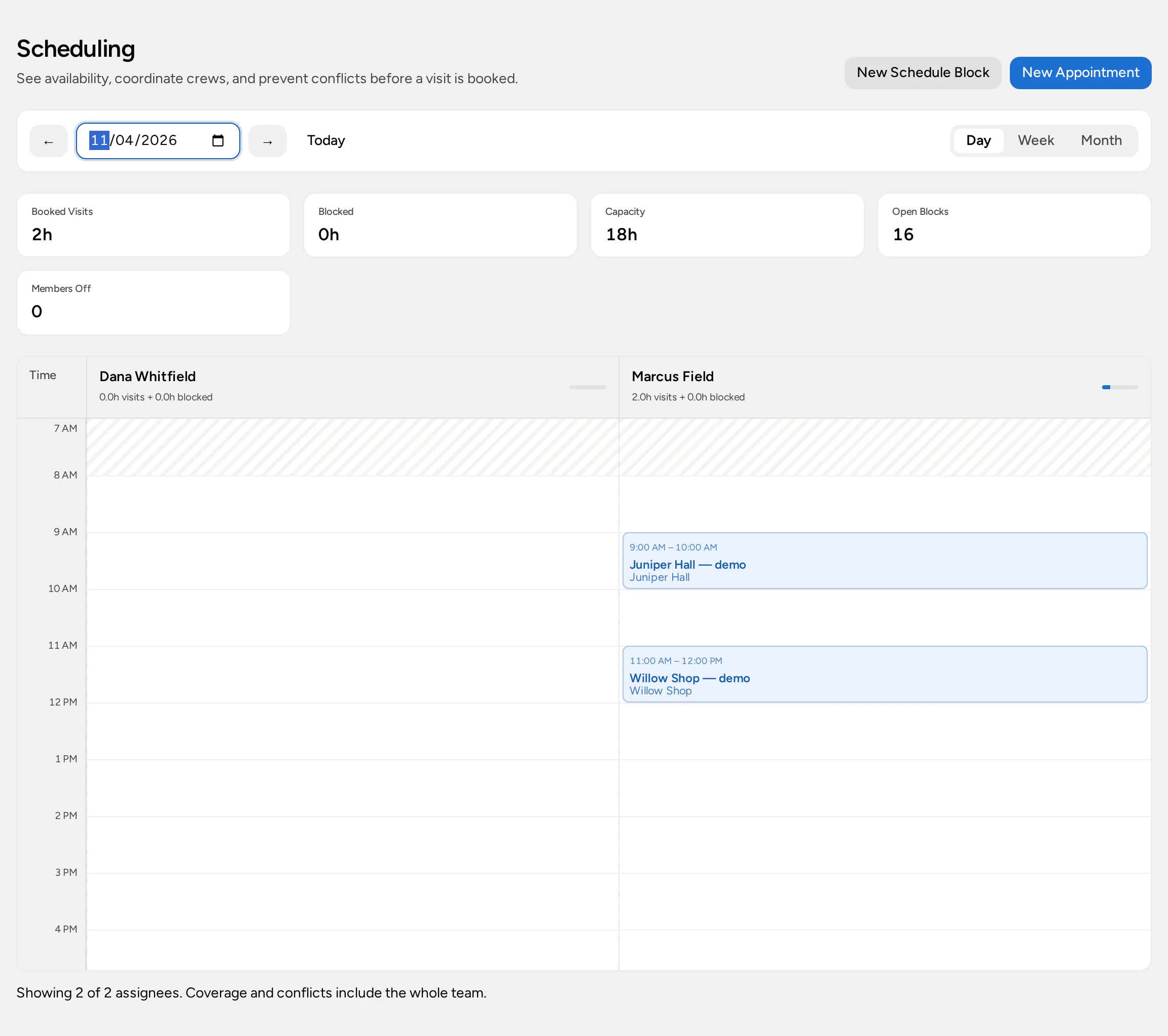
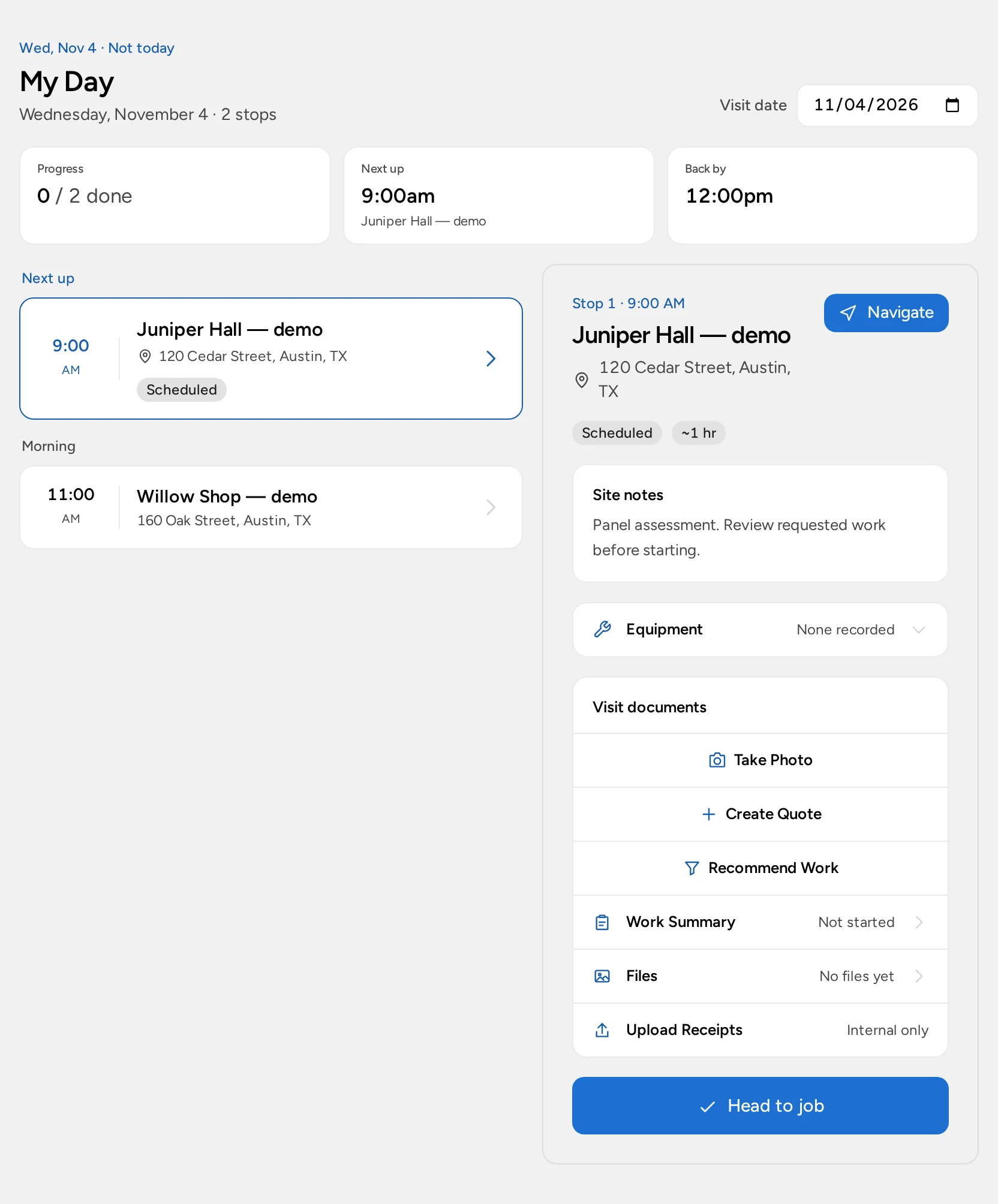
If you work solo, My Schedule reserves your time for estimates and paperwork. It cannot dispatch an electrician to a site. With the add-on enabled, Field Service lets an authorized scheduler book customer-site visits and assign workers; assigned people see their visits in My Day when that experience is active and their roles permit it. Compare these views before setting up your team.
Field Service is an optional $20/month add-on per organization on Basic or Pro. The no-card Pro trial can include Field Service. Enterprise is custom-scoped: confirm Field Service in your agreement. Your organization must select that scheduling experience, and each person's role still controls access. Compare plans.
For example, book an assessment at the correct building before pricing a panel upgrade. Once scope and customer approval are clear, schedule the installation separately if another visit is needed; don’t assume changing a lead status or approving a quote books it. Confirm site access, shutoff arrangements, and timing directly with the customer.
Carry findings into a separate decision
After an assessment, review the customer’s actual choices before preparing a price. A quote for a small repair and a proposed panel upgrade have different scopes; don’t let one appointment title stand in for both. If the customer wants alternatives, use a proposal and wait for a selection before building the quote. A proposal selection is not invoice approval, payment, or authorization for a return visit. Check the correct customer and service location again when you prepare a visit-linked quote.
If the customer agrees to proceed, confirm the required access and any planned shutoff through your own work process. Book a second installation visit with an eligible person only when there is a real time and site to commit. The first assessment remains its own visit; completion won’t turn it into a later appointment. The scheduling guide explains how a dispatcher and the assigned worker see different views.
Price choices and set up card checkout
Use a proposal when a customer needs to compare viable options. Build the quote after a selection, or create a quote directly for a straightforward job. Review tax, approval, and deposit terms, then issue and send the invoice deliberately. A finished visit doesn’t send a document or prove payment.
For online card payment, someone with settings access connects the organization’s Stripe account in Administration → Payments and saves an active Online payment income category after completing provider requirements. This is distinct from the subscription card used to buy Opsentric. An eligible issued or approved invoice can then offer provider-hosted Stripe Checkout. Check the confirmed balance before recording any manual payment; the setup guide covers the checks.
Keep material costs out of the customer invoice ledger
Record supplier costs as expenses and agreed customer charges on the invoice. Keeping them separate does not mean leaving billable materials off the customer’s quote.
Cable, fittings, and a rented tool are purchases by the business, even if you later include materials in a customer quote. Opsentric tracks those expenses separately from invoice income; it does not automatically tie a supplier purchase to an individual panel assessment or calculate project profit.
After a purchase, save the receipt under Receipts → Upload Receipts. A worker may have permission to upload without seeing other people’s expenses. A finance manager reviews Needs Review, checks the actual vendor, date, amount, and expense category, and either attaches the file to a purchase already in Ledger or chooses Create Expense. Even an AI suggestion needs checking; upload alone doesn’t create the expense. See the receipt workflow.
Review the ledger against supplier records and the outstanding customer invoices at the end of the week. A card payment confirmed through checkout creates linked invoice income; don’t record a second income transaction simply because the bank deposit appears later. Daily business routines gives the office and finance team separate checks.
Keep technical records where they belong
- Add a fictional facilities customer and two work addresses. Check that the assessment is attached to the intended building, not merely the billing office.
- Create separate leads for a service call and a larger project. Give each its own follow-up and review the open pipeline.
- Book an assessment in Field Service if the team uses it; check the assigned electrician’s My Day. A solo owner’s My Schedule block is only their personal time.
- Prepare a proposal or quote from the verified scope, review the approval and deposit terms, then issue and send the invoice as a separate action.
- Upload a fictional supplier receipt, and have the finance owner attach it to an existing purchase or create the expense once.
- Review the visit’s status, unreviewed expenses, and the invoice’s balance independently at week’s end. Use daily business routines to decide who owns the checks.
Keep load calculations, permit applications, inspection outcomes, safety procedures, and equipment documentation in the systems required for your work. Opsentric’s customer notes are not a substitute for them.